Prepaid cards let you sell bundles through your app, for example 10 coffees or 10 sets of balls. Members pay upfront in the app and redeem the items later, on site or online. You'll find them under Program > Prepaid cards.
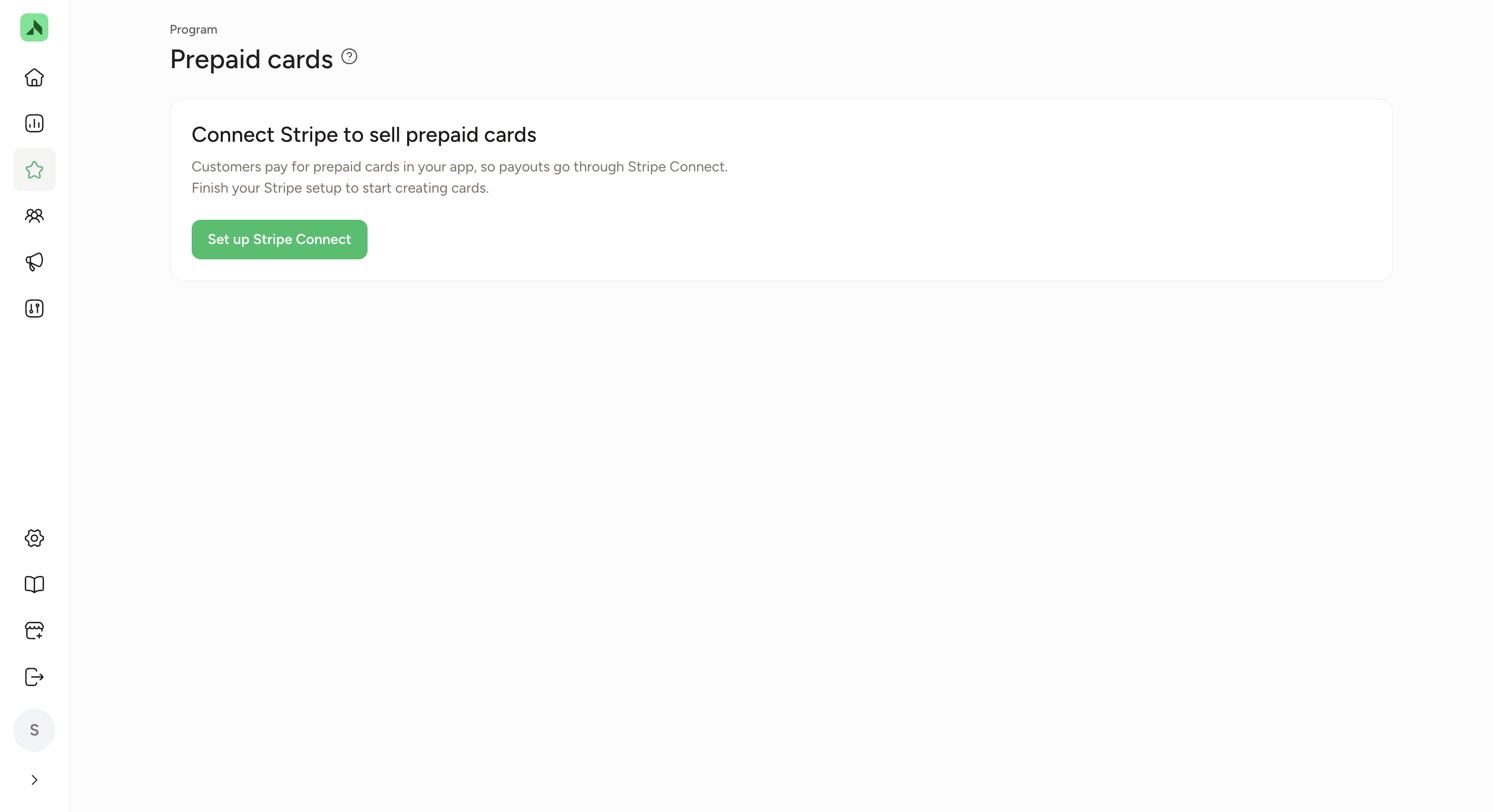
Set up Stripe Connect firstMembers pay for prepaid cards in your app, and payouts to you go through Stripe Connect. That's why you need to set up Stripe Connect before you can create prepaid cards.
- Go to Program > Prepaid cards.
- Click Set up Stripe Connect and complete the setup with Stripe.
- Then, under Settings > Stripe Connect, fill in your company and VAT details under VAT & invoicing:
- Company: your registered company name, address, postcode, city, country, Chamber of Commerce (KvK) number (or your local equivalent) and the email address for invoices.
- VAT: your VAT status and, if you're VAT-registered, your VAT number. The VAT number is checked against the EU's VIES register.
- Click Save. You can now create prepaid cards.
We use these details for your monthly commission invoice (including 21% Dutch VAT) and to show your VAT number on your members' receipts. The same page also shows the status of your Stripe account (payouts, payments, country and fees). Click Open Dashboard to go to your Stripe dashboard.
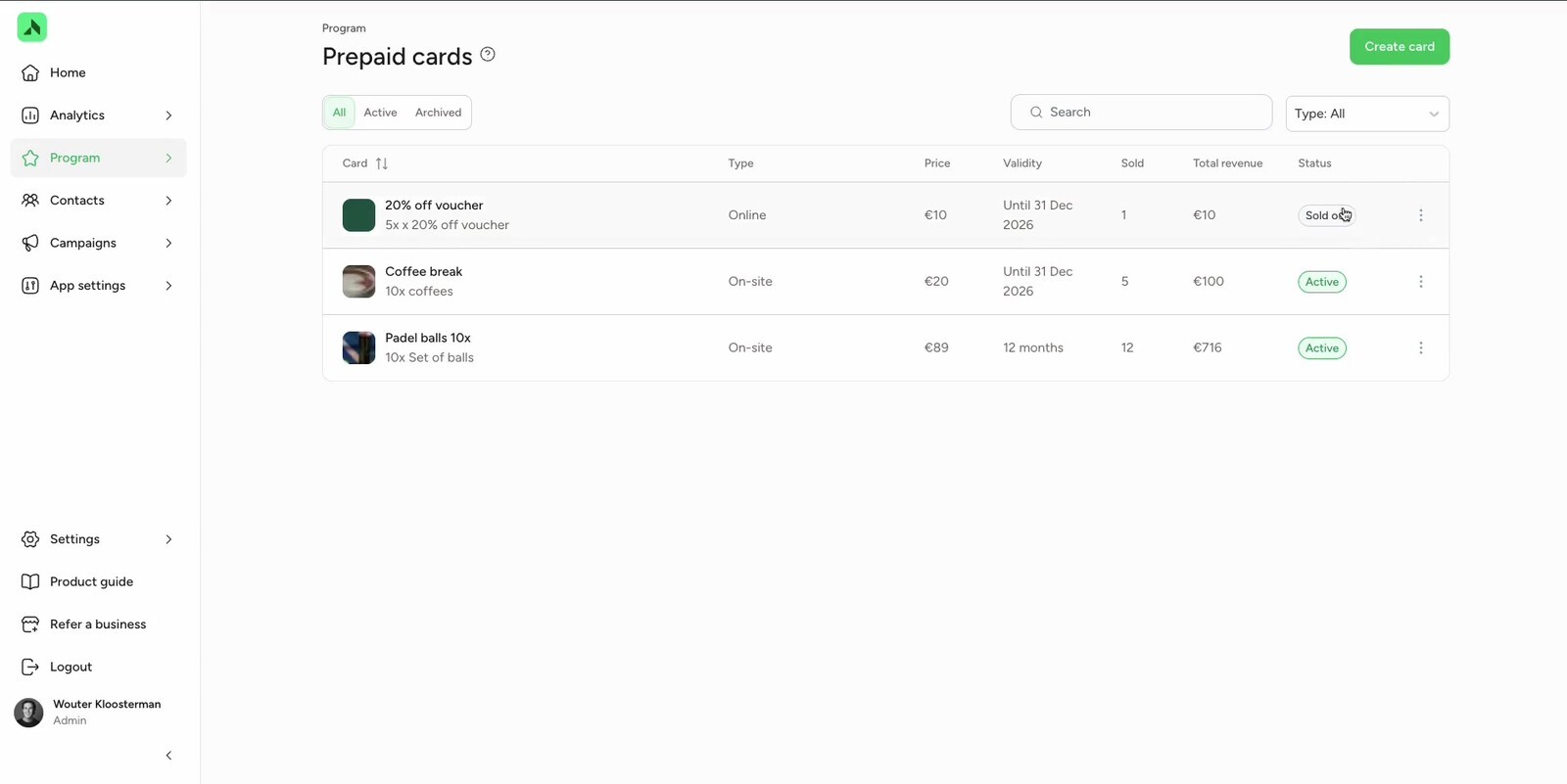
The overview shows all your prepaid cards with their type, price, validity, how many have been sold, total revenue and status. Filter using All, Active and Archived, search by name or filter by type. Create new cards via Create card.
| Type | How members redeem | Example |
|---|---|---|
| On-site | At your location: the member shows their QR code and it gets scanned. | 10 coffees, 10 sets of balls |
| Online | Online: the member gets a code for each item, which they use when booking in your booking system. | 5 vouchers for 20% off |
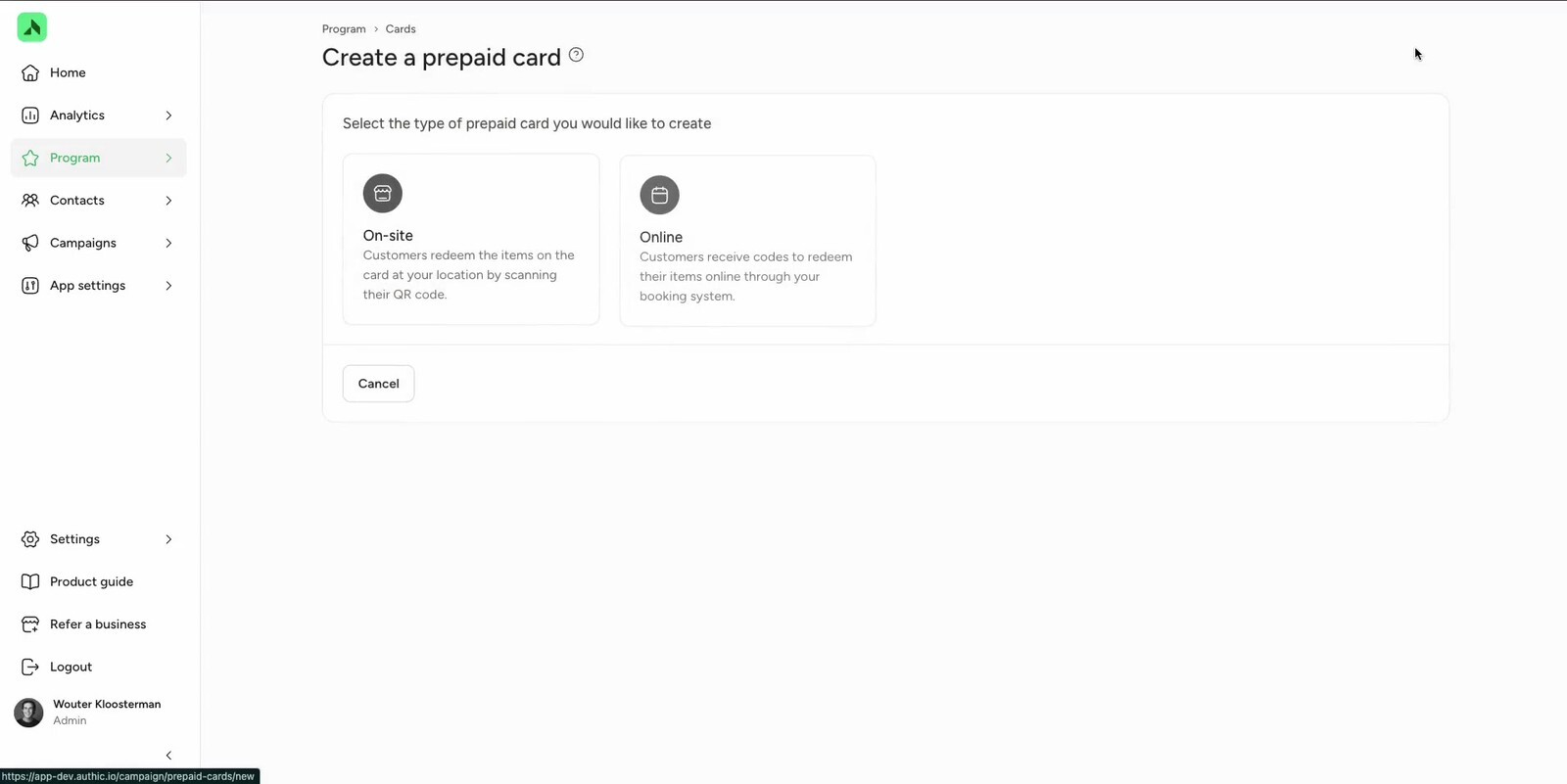
- Click Create card and choose On-site or Online.
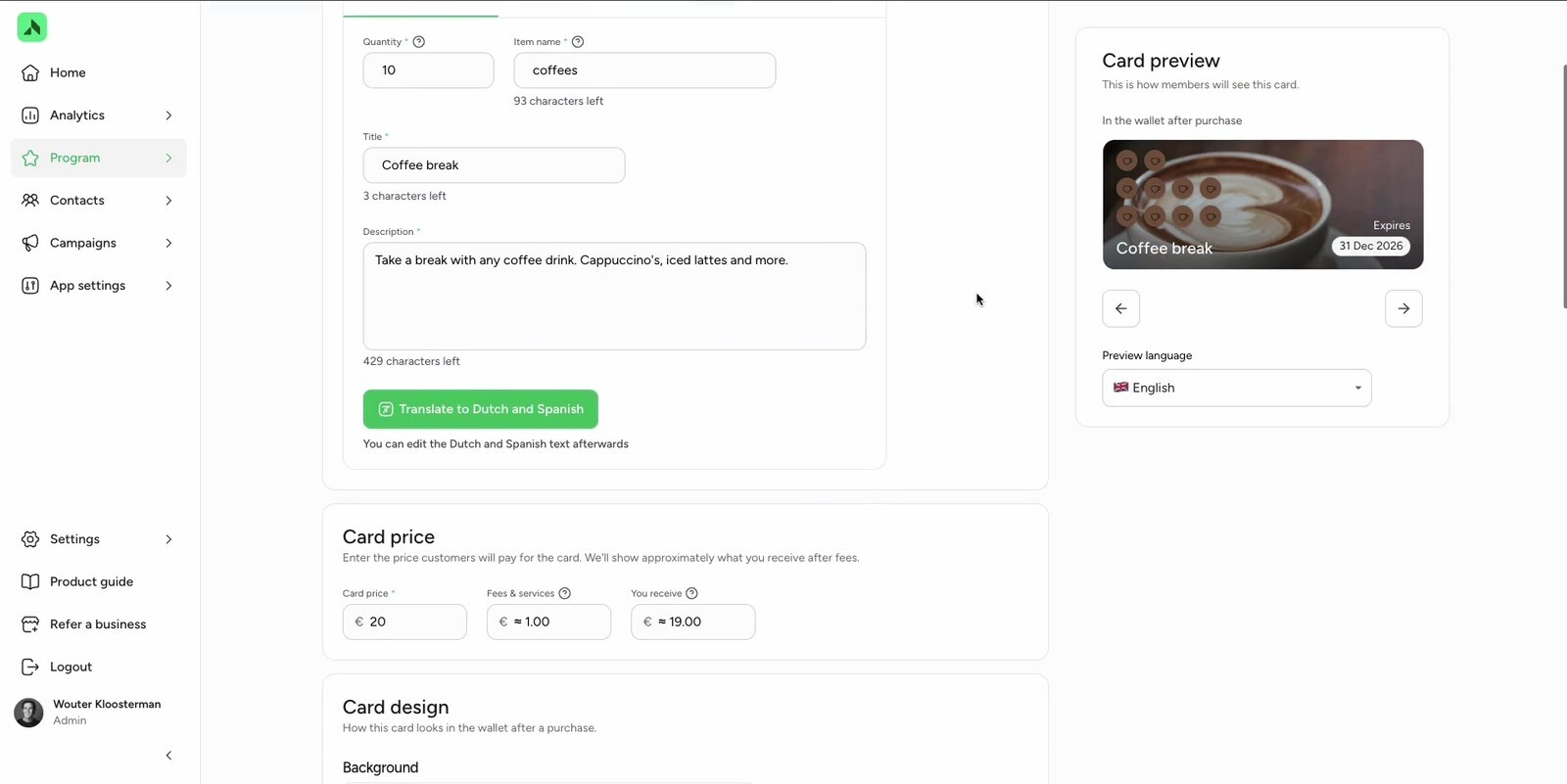
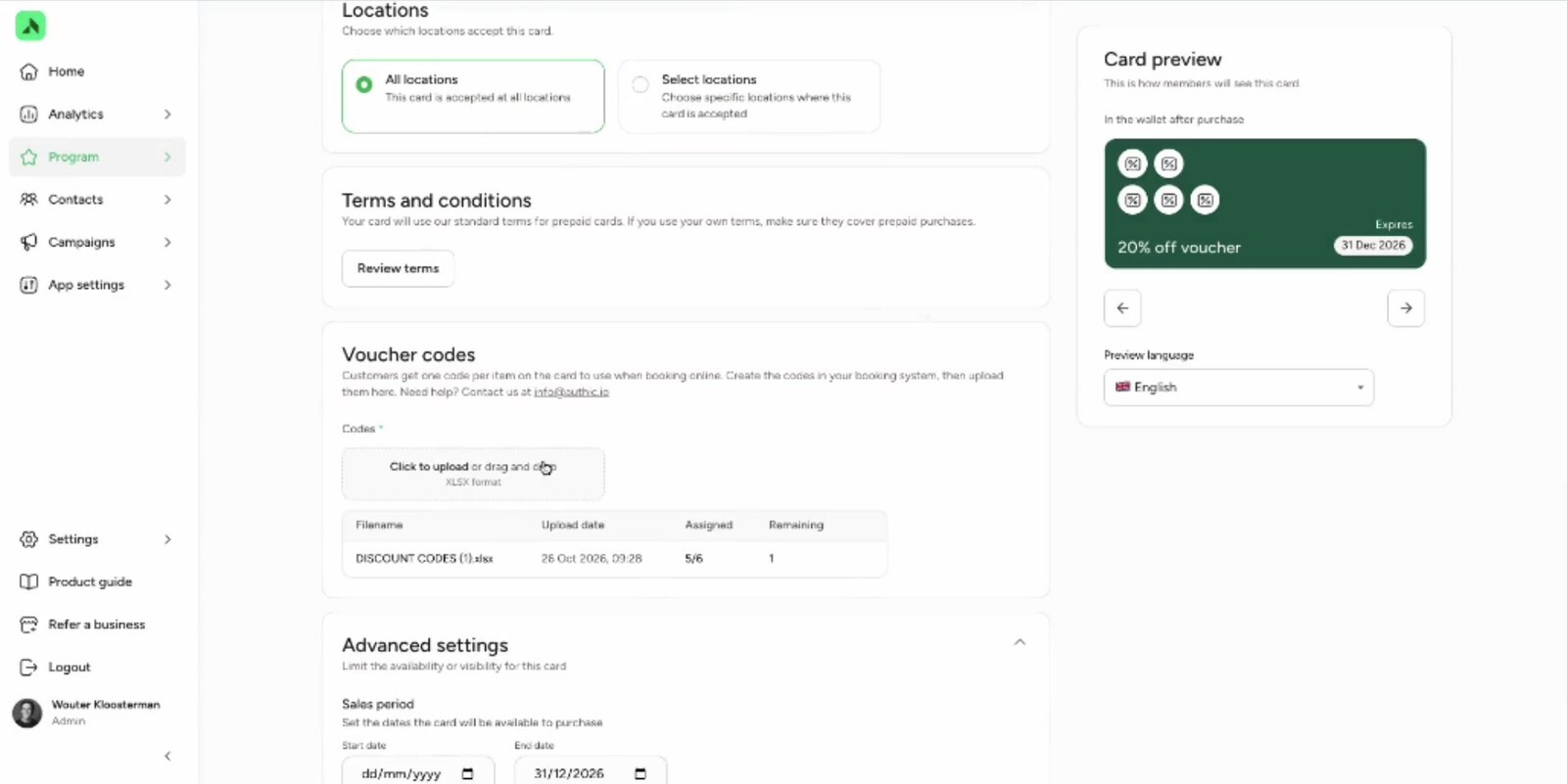
- Card details: enter the number of items (Quantity), the item name (Item name, for example "coffees"), a title and a description. Translate to Dutch and Spanish translates the text automatically; you can still edit the translation afterwards.
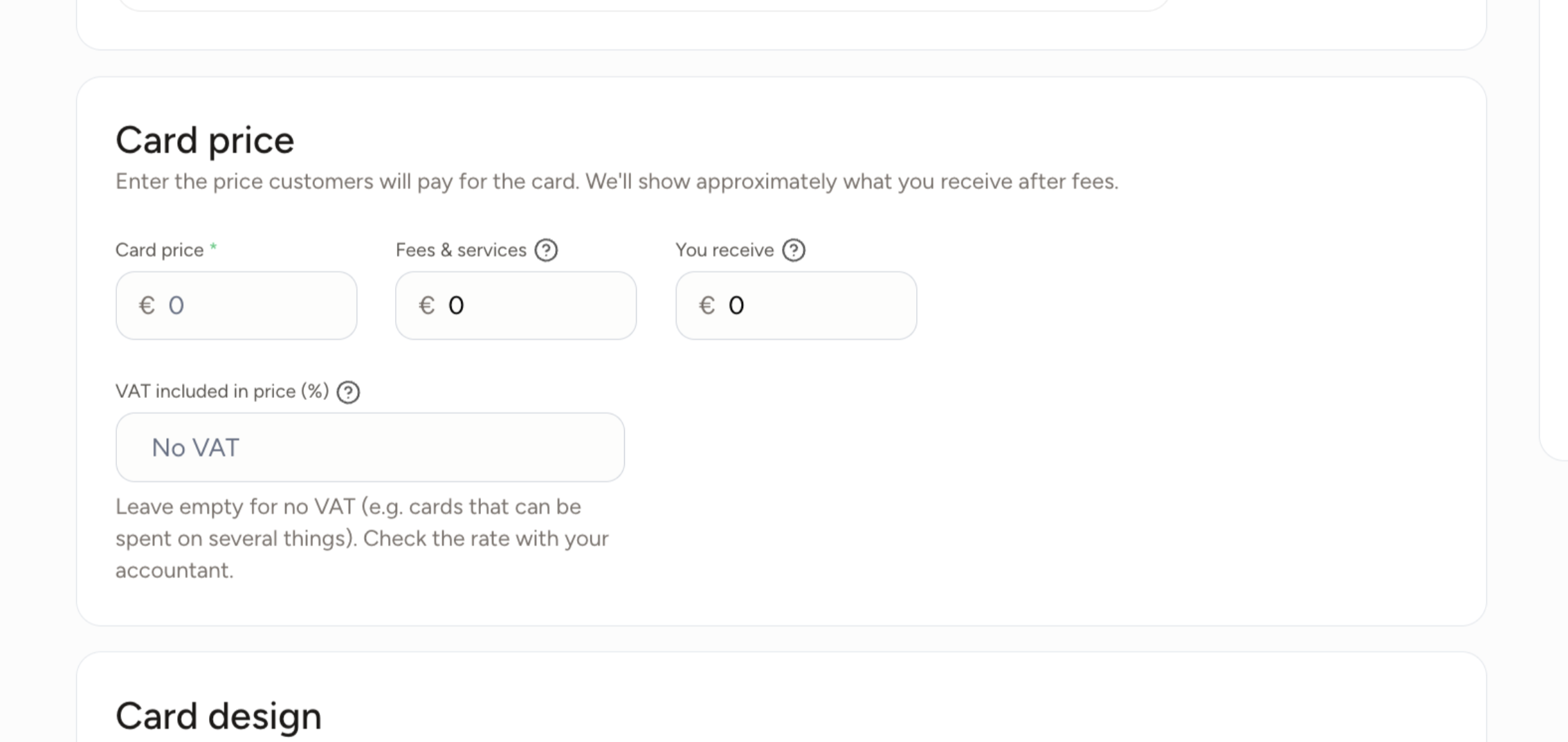
- Card price: enter the price members pay for the card. You'll immediately see roughly how much goes to fees and services and what you receive. Under VAT included in price (%), enter how much VAT is included in the price. Leave it blank if no VAT applies, for example for a card that can be spent on different things. Check the right rate with your accountant.
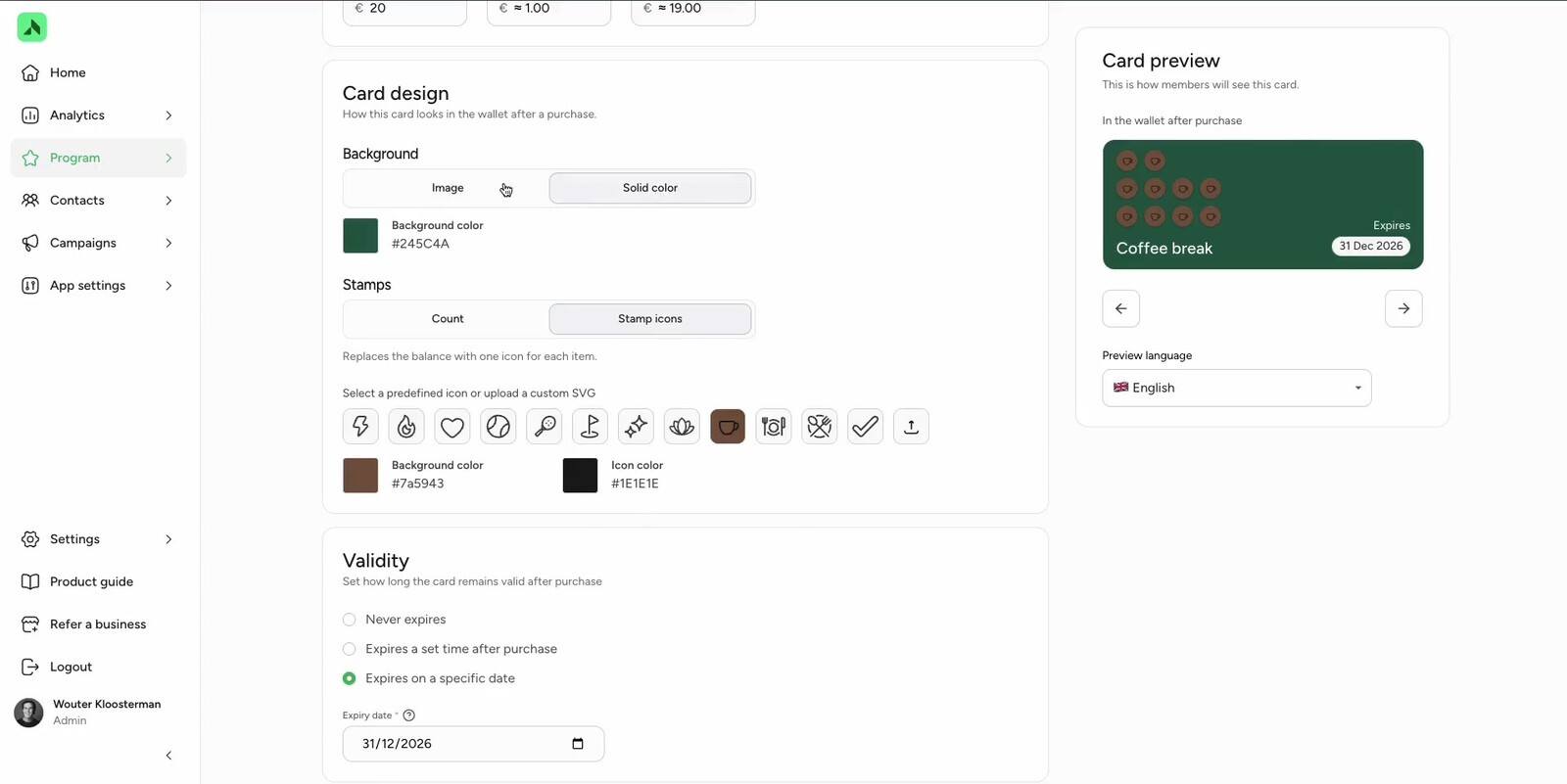
- Card design: choose how the card looks in the member's wallet. Pick an image or a solid colour as the background. Under Stamps, choose whether the balance is shown as a number (Count) or as an icon per item (Stamp icons). Choose an icon or upload your own SVG, and set the colours.
- Validity: choose how long the card is valid after purchase: Never expires, Expires a set time after purchase or Expires on a specific date.
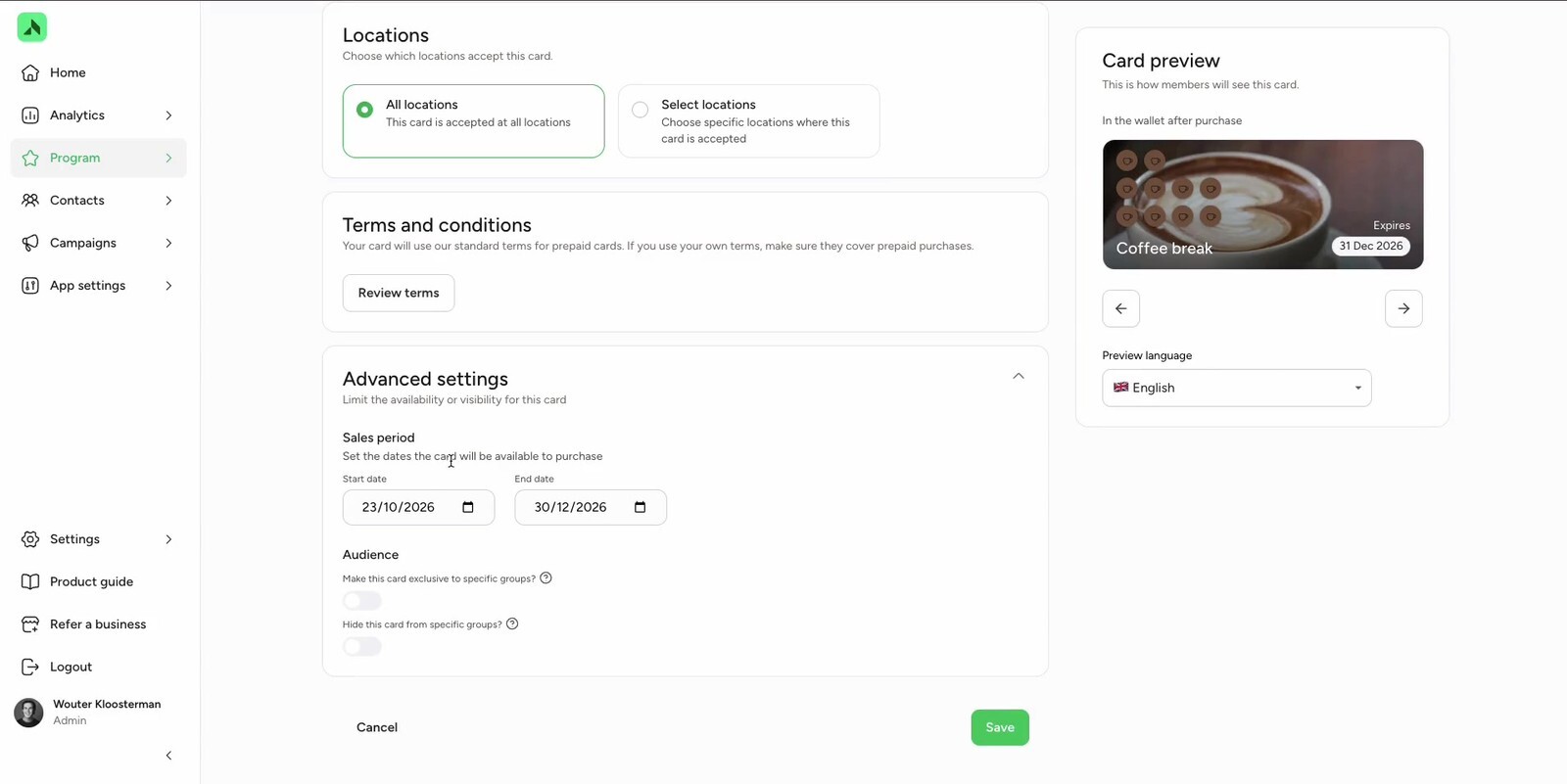
- Locations: choose whether the card is valid at all locations (All locations) or only at specific ones (Select locations).
- Terms and conditions: by default the card uses Authic's terms and conditions for prepaid cards. View them via Review terms. If you use your own terms, make sure they also cover prepaid purchases.
- Online cards only – Voucher codes: create the codes in your booking system and upload them as an Excel file (XLSX). Members get one code per item. The table shows, per file, how many codes have been assigned and how many are left.
- Optional – Advanced settings: under Sales period, set the dates between which the card is on sale, and under Audience, choose whether the card is only visible to certain groups or hidden from certain groups.
- Click Save.
The Card preview on the right always shows how the card will look in the wallet.