
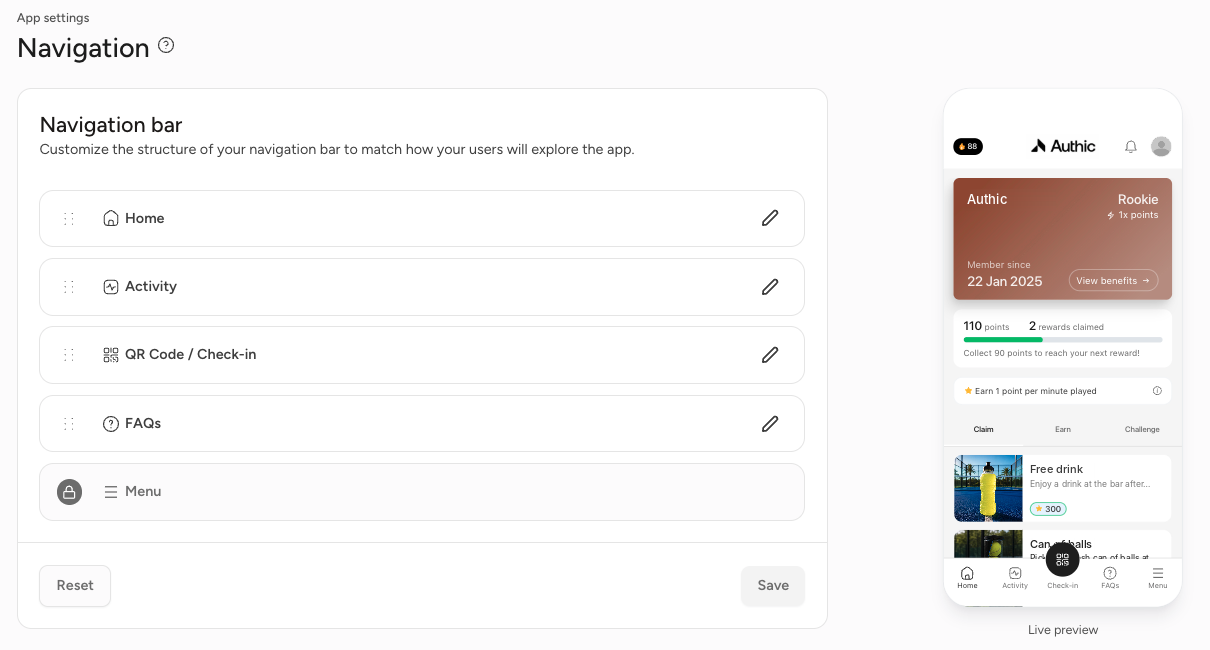
The navigation bar is the bar at the bottom of the app that members use to switch between the main sections. Under App settings > Navigation, you decide which tabs appear and in what order. The Live preview on the right shows exactly how the navigation bar looks.
Changing the order
Drag a tab up or down by the dots on the left to change the order. The Menu tab is fixed (you'll see a padlock) and can't be moved or changed.
Editing a tab
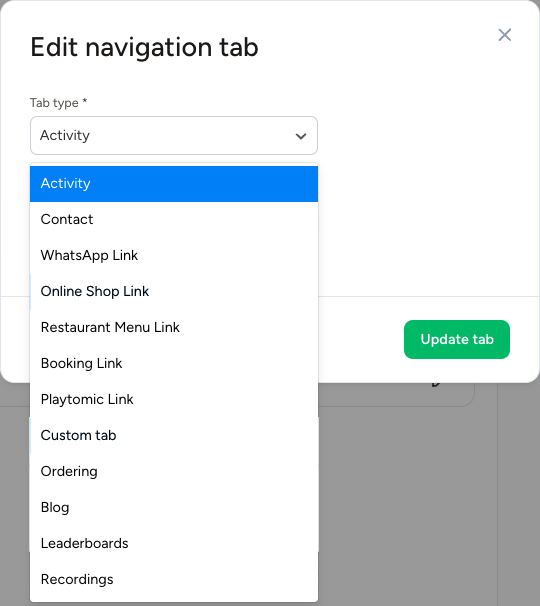
Click the pencil icon next to a tab. Under Tab type, choose what's behind that tab:
- Sections of the app: Activity, Contact, Ordering, Blog, Leaderboards and Recordings.
- Links to your own channels: WhatsApp Link, Online Shop Link, Restaurant Menu Link, Booking Link and Playtomic Link. That way members can jump straight to your webshop, menu or booking page with a single tap.
- Custom tab: a tab you fill in yourself.
Only pick the tabs that suit your business: a padel club will get more out of a Playtomic or Booking Link, for example, and a restaurant out of a Restaurant Menu Link. Click Update tab to confirm your choice.
Finally, click Save to save the navigation bar. Use Reset to put the navigation bar back to its default layout.
Note for PWAs
Don't have your own app, but a PWA built into an existing app? Then you can't customise the navigation bar. In that case, loyalty is usually an icon within that existing app's tabs, so the navigation is controlled by that app.