
Memberships let you give a specific group of customers exclusive perks. Here's how they differ from tiers: members reach a tier by earning points, whereas a membership is about access. A member either has it or they don't. Each membership has its own card with its own perks. Memberships are often used for VIP clubs, premium communities or subscription-based perks programmes. You'll find memberships under Program > Memberships.
Free and paid memberships| Free membership | Paid membership | |
|---|---|---|
| What it is | A card for a group you choose | A membership members buy themselves in the app |
| Examples | A VIP group of your best customers, a staff card, or a card for a partner such as a local sports club, student society or business club | A premium loyalty club or VIP subscription, a paid community, or a treatment membership that gives members a specific treatment every three months |
| How do members get the card? | You add members by their email address and they'll see the card in the app automatically. Members can't sign up for a free membership themselves. | Members take out the membership themselves in the app, as a subscription. They pay automatically every month or year through Stripe. |
| What do you need? | Nothing extra | Stripe Connect (see Prepaid cards). Authic charges a 5% fee. |
| Benefits | You reward groups that matter to you, like staff or partners, and attract new customers through partnerships. Discounts live digitally in the app, so you no longer need separate flyers or cards. | You get predictable, recurring revenue. Members have paid upfront, so they come back to use their membership. You can offer your most loyal customers something extra, like a regular treatment each period or exclusive perks. |
A note on free memberships: if you want members to receive an invitation, use Invite (see Inviting members to a free membership below). Members need to use the app with the same email address you invited them with.
Does a member have both a tier and a membership? By default, the membership card replaces the tier card in the app, so the member only sees the membership card. Want members to see both cards? Get in touch with our team or your Customer Success Manager.
Creating a membership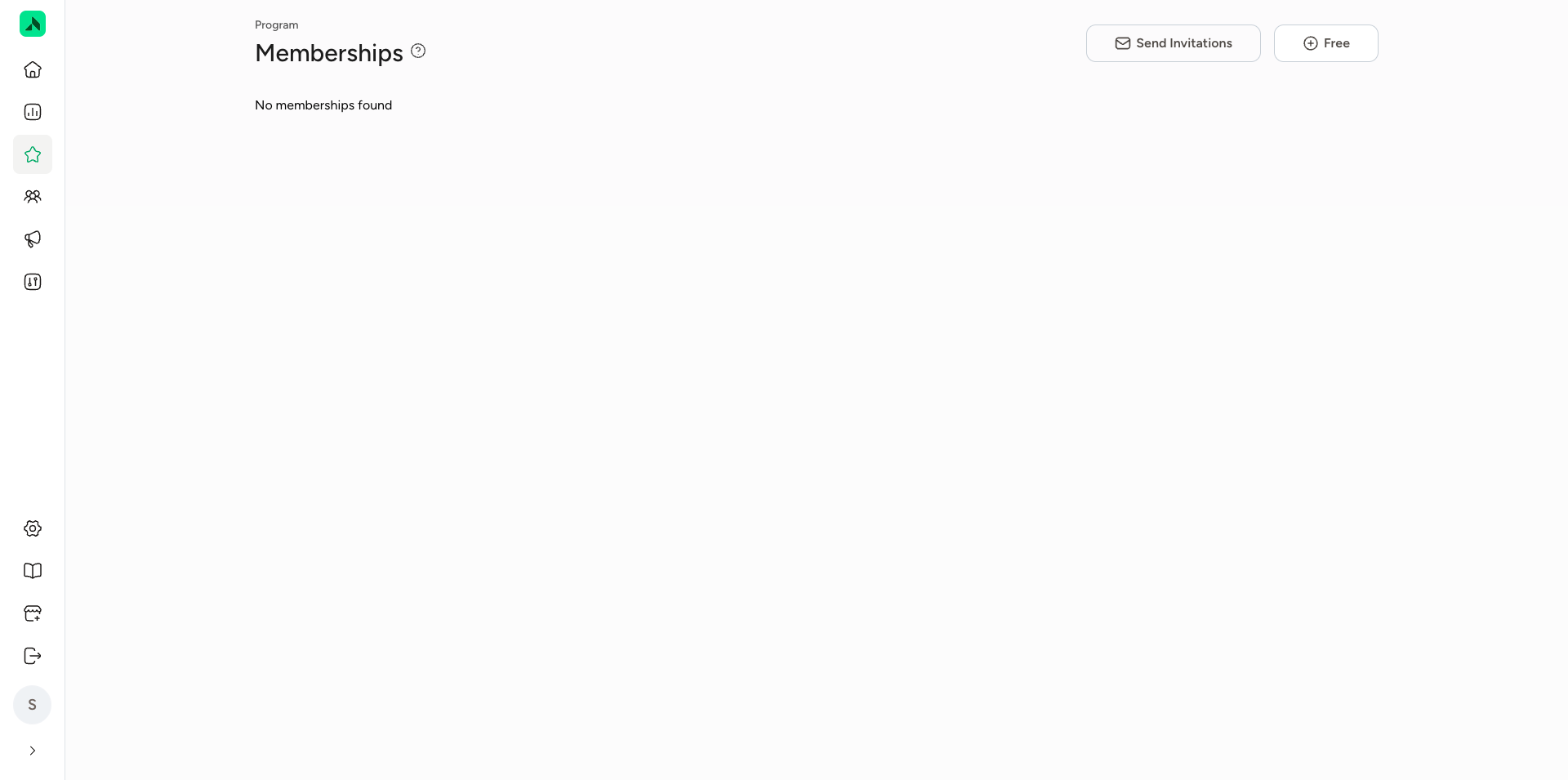
- Go to Program > Memberships and click Free in the top right to create a free membership.
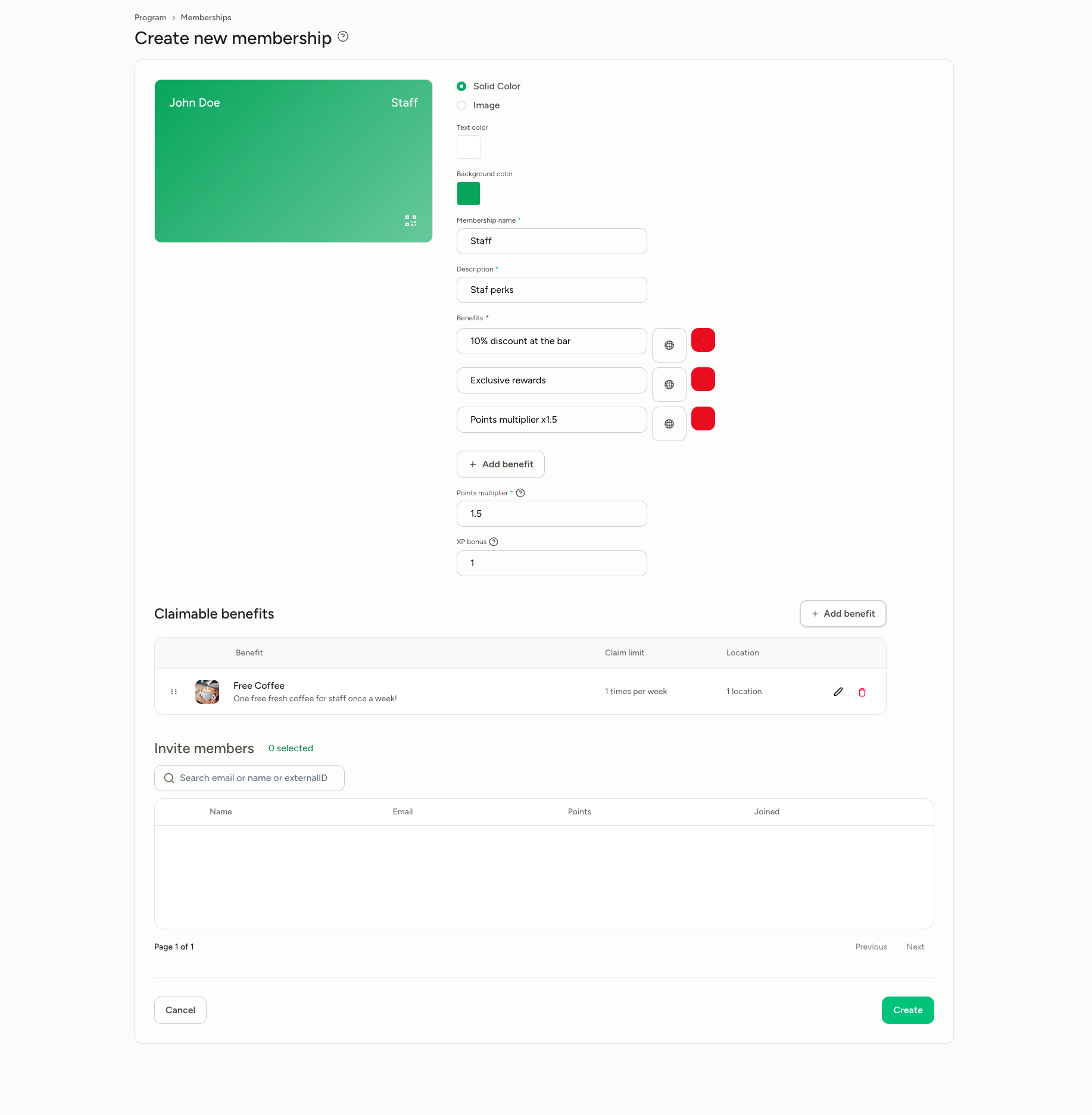
- Card design: choose a solid colour (Solid Color) or an image (Image), and set the text and background colours. You'll see a live preview of the card on the left.
- Enter the Membership name and a Description, for example "Staff" and "Staff perks".
- Benefits: list the perks cardholders get, for example "10% discount at the bar", "Exclusive rewards" or "Points multiplier x1.5". Add more with Add benefit.
- Points multiplier: how much faster cardholders earn reward points, for example 1.5.
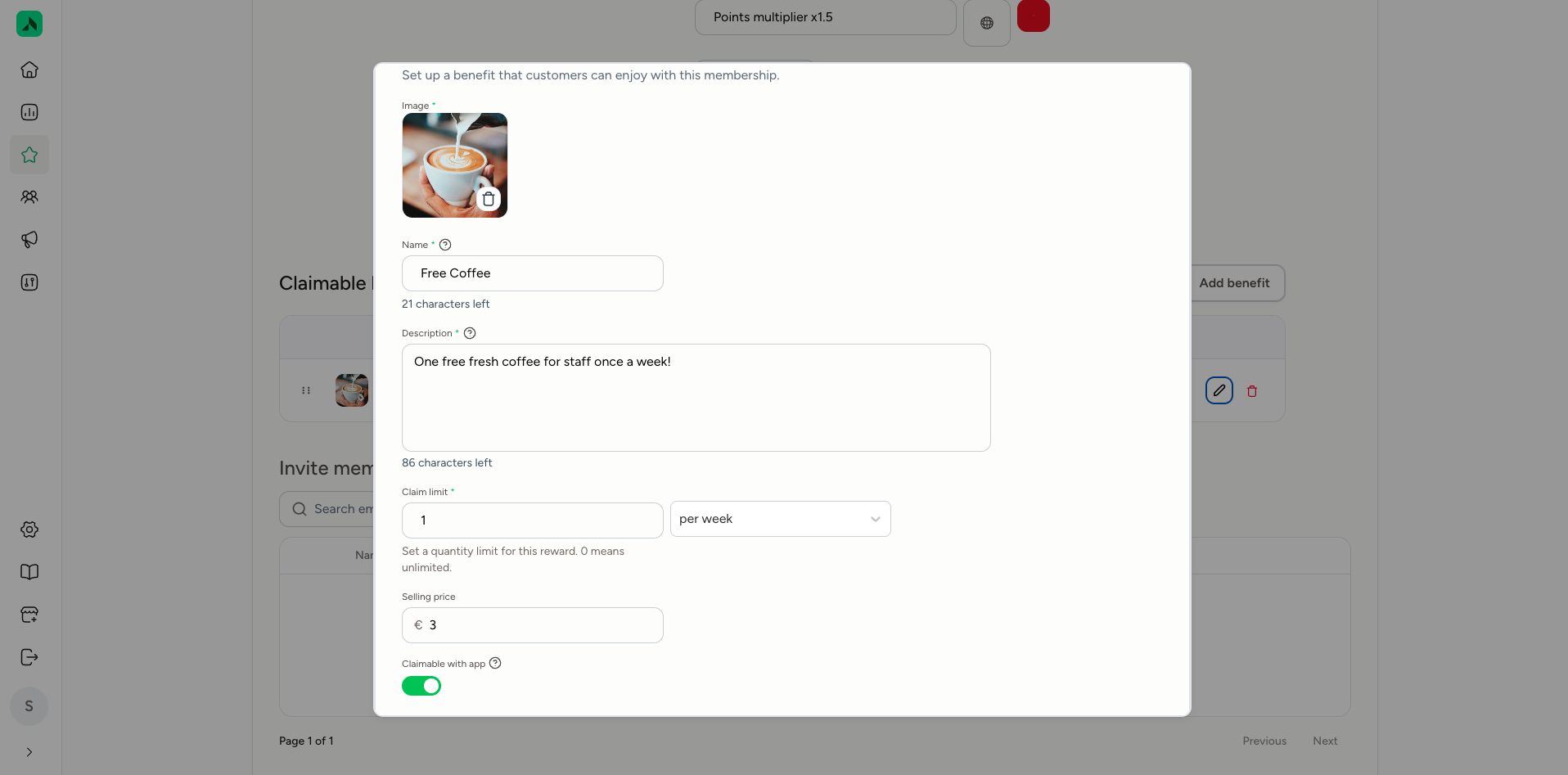
- Claimable benefits: perks cardholders can claim, for example a free coffee for staff once a week. Click Add benefit and, for each perk, enter an image, a name and description, the Claim limit (how often per period, for example once a week; 0 means unlimited) and the Selling price (the normal price). Switch on Claimable with app if members can claim the perk in the app. If it's switched off, members can still see the perk in the app but can't redeem it there (by QR code or swipe). That's handy for a perk you give on site, like a discount at the bar.
- Invite members: search for members by email address, name or external ID and select who gets the card.
- Click Create.
- Go to Program > Memberships and click Invite.
- Choose the membership you want to invite members to.
- Choose the language of the invitation.
- Add members by email address. There are three ways to do this:
- type in the email addresses yourself;
- upload an Excel file with the email addresses;
- choose a tag under Member tags.
- Check the invitations and click Send.
Removing members from a free membership
- Go to Program > Memberships and click Edit next to the membership.
- In the member list, untick the members you want to remove.
- Click Update. Those members are no longer part of the membership and lose access to its perks.
A paid membership requires Stripe Connect to be set up (see Prepaid cards).
- Go to Program > Memberships and click Paid in the top right.
- Design the card: choose a solid colour or an image as the background, and a text colour that's easy to read.
- Fill in the details: the name, a description, the monthly or yearly price and the points multiplier.
- Add perks with Add benefit. For each perk, enter an image, a name and description, and the claim limit (0 means unlimited and always available). Optionally, enter what the perk costs you, so you get a clearer picture of what the membership earns you after costs. If you have multiple locations, choose which locations the perk applies to.
- Click Create. The membership is now in the app and members can sign up.
Use Add translations and the globe icon to automatically translate the text into your app's other languages.
Linking perks to a membershipThese are some of the perks you can link to a membership:
- A discount when showing the card, for example 10% staff discount at the bar, or a discount for members of a partner club.
- Earn faster: cardholders get more reward points.
- Exclusive rewards: make a reward visible only to cardholders via Audience on the reward. For example, a free drink for staff.
- Exclusive challenges: for example a challenge where staff earn points for bringing in new members.
- Bonus points: set up a bonus points rule that only applies to cardholders, via Audience in the rule. For example, extra points for students during off-peak hours.