
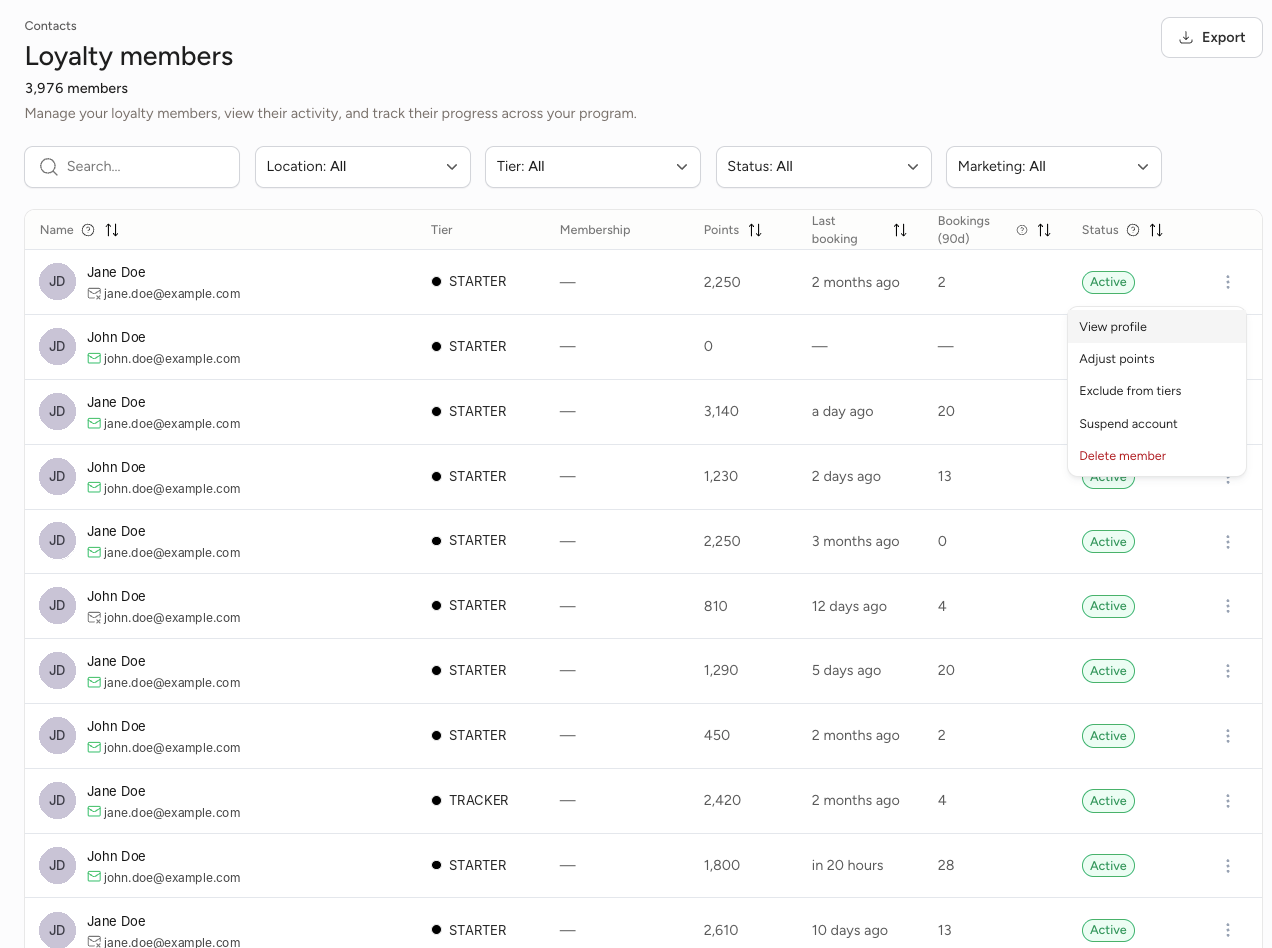
Loyalty members lists everyone in your loyalty programme. For each member you'll see their name and email address, tier, any membership, points balance, last booking, number of bookings over the last 90 days and status.
At the top, filter by Location, Tier, Status and Marketing (marketing consent). Use Export to download the member list.
Click the three dots next to a member to choose:
- View profile: open the member profile.
- Adjust points: add or deduct points.
- Exclude from tiers: exclude the member from tiers.
- Suspend account: suspend the member's account.
- Delete member: delete the member.
Member profile
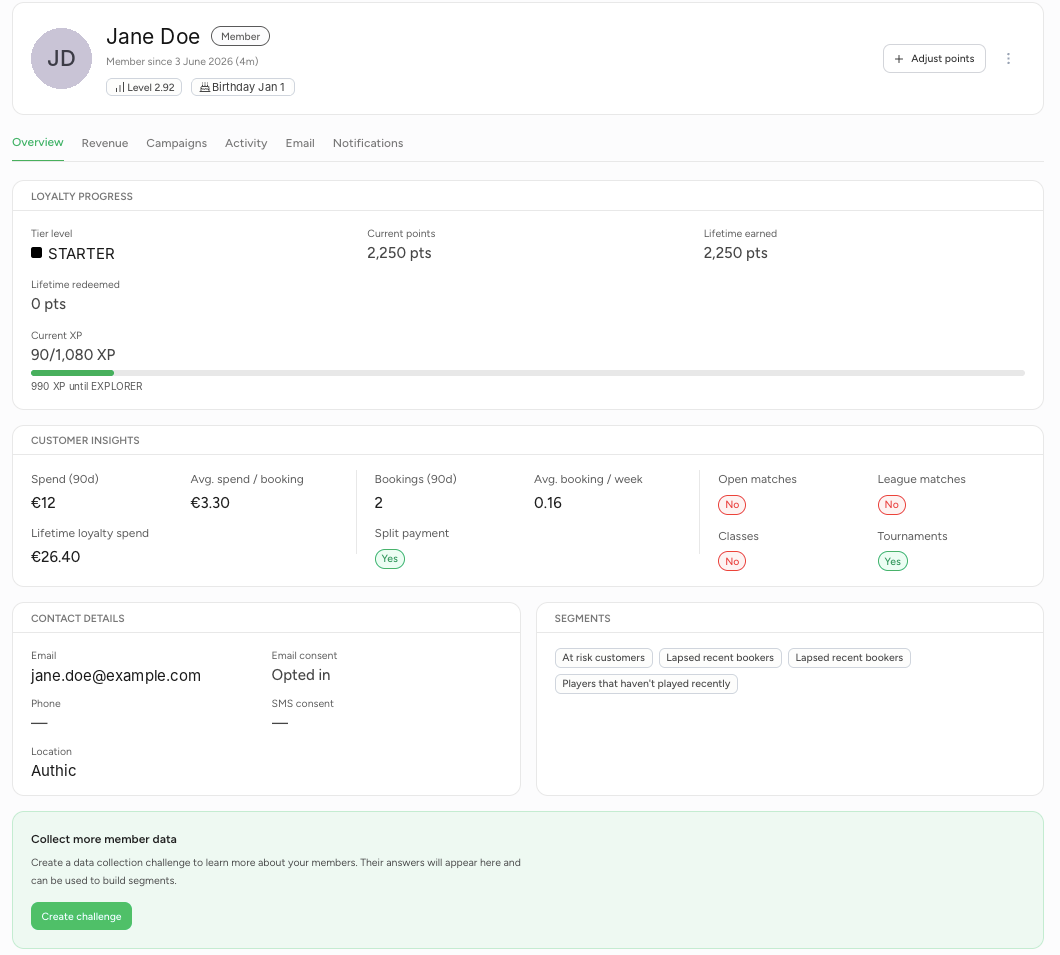
At the top of the member profile you'll see the member's name, when they joined, their level and their birthday. Use Adjust points in the top right to adjust this member's points directly. The profile has six tabs.
Overview
- Loyalty progress: the current tier, points balance, how many points the member has earned and redeemed in total, and their current XP plus how much more XP they need for the next tier.
- Customer insights: spend and bookings, such as spend and number of bookings over the last 90 days, average spend per booking and total spend.
- Contact details: email address, phone number, email and SMS consent, and location.
- Segments: which segments the member belongs to.
At the bottom you'll see Collect more member data. Click Create challenge to create a challenge that collects extra information from your members. Their answers appear in the profile and you can use them to build segments.
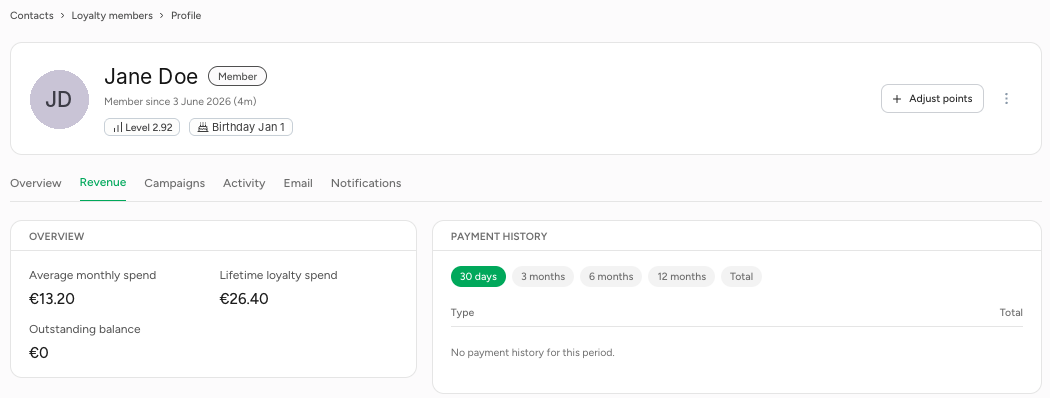
Revenue
Average spend per month, total spend and any outstanding amount. Under Payment history you'll see payments over the last 30 days, 3, 6 or 12 months, or all time.
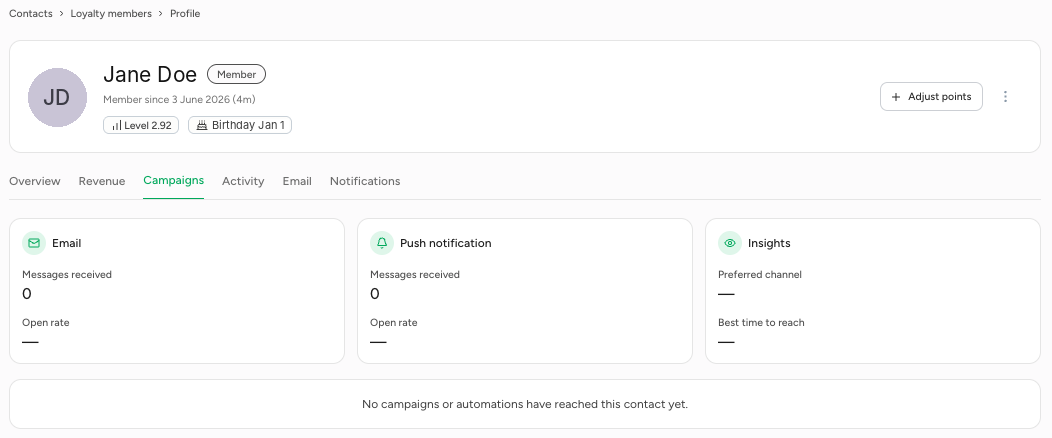
Campaigns
How many emails and push notifications the member has received and the open rate, their preferred channel and the best time to reach them, and which campaigns and automations have reached them.
Activity
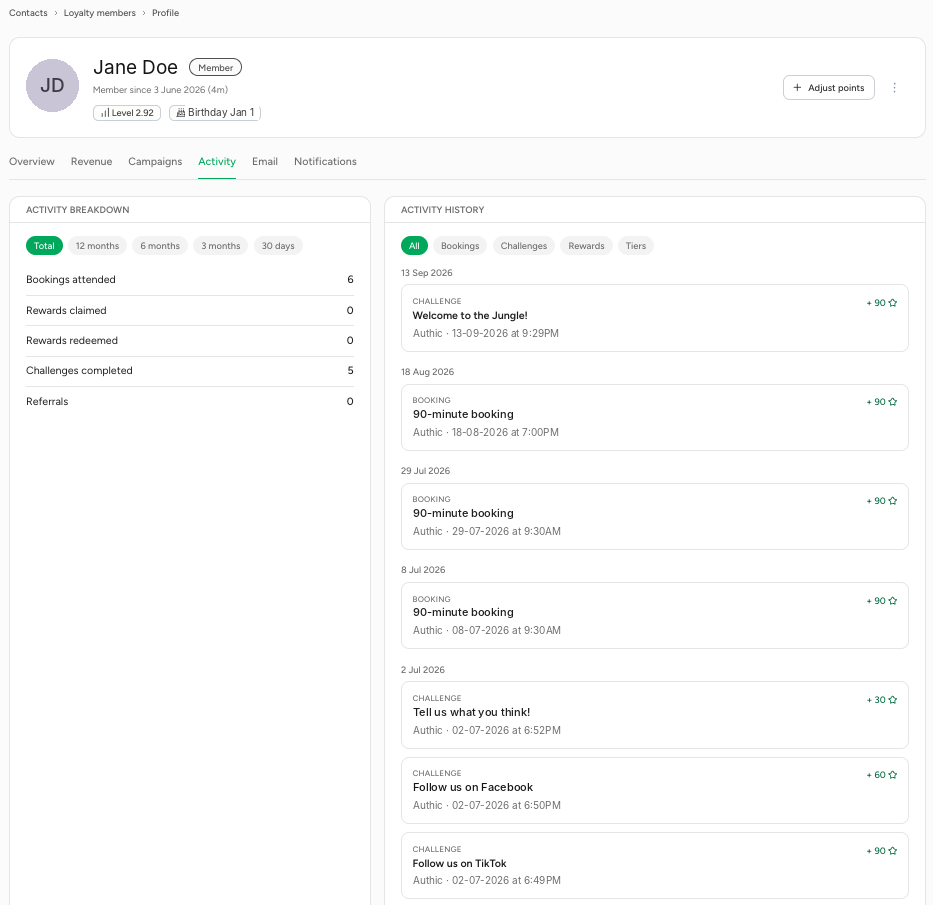
On the left, Activity breakdown shows how many bookings, claimed and redeemed rewards, completed challenges and referrals the member has, per period. On the right, Activity history shows all activity by date, with the points the member earned for it. You can filter by Bookings, Challenges, Rewards and Tiers.
This is where you email the member, just like with a contact. If the member hasn't opted in to marketing emails, you'll see the message "Email unavailable" and won't be able to send one.
Notifications
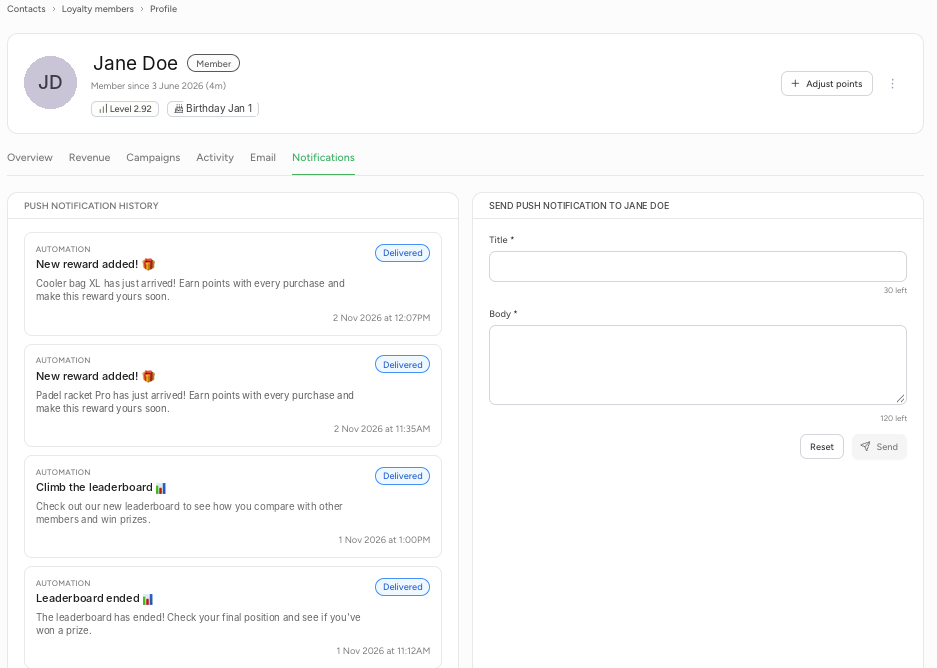
On the left you'll see every push notification the member has received, including those from automations, with their status (for example Delivered). On the right you can send the member a personal push notification straight away: enter a title (up to 30 characters) and message (up to 120 characters) and click Send.
Change a member’s email
Within the member profile, the customer email can also be updated. Change the email address a member uses to sign in, for example if they’ve got a new address or signed up with a typo.
- Open the member profile.
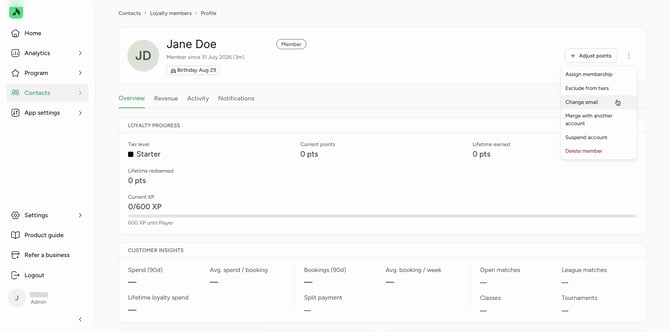
- Click the three dots in the top right and choose Change email.
- Enter the new email address and click Continue.
- Check the current and new email address. You’ll also see whether another member already uses the new address.
- Leave Send email and notify this member ticked so the member is informed on their new email about the change of their sign-in email and to set a new password immediately.
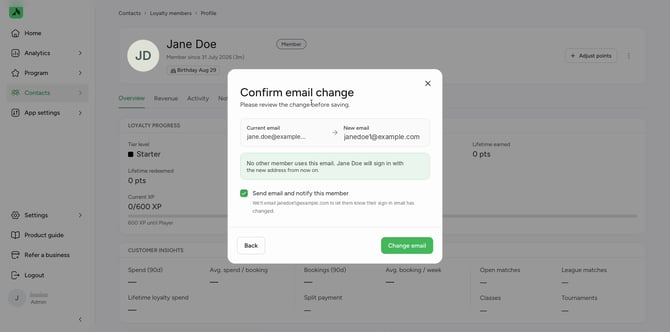
- Click Change email. From now on, the member can sign in with the new address.
Merge two accounts
Within the member profile, the customer email can also be merged with another email. Has a member accidentally created two accounts, for example with two different email addresses? Merge them into one, so their points and history are all in one place.
- Open the profile of the account you want to keep.
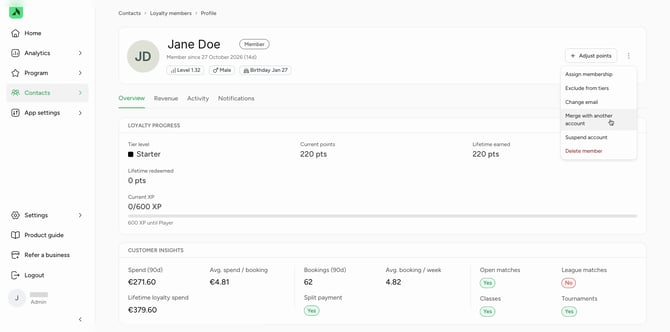
- Click the three dots in the top right and choose Merge with another account.
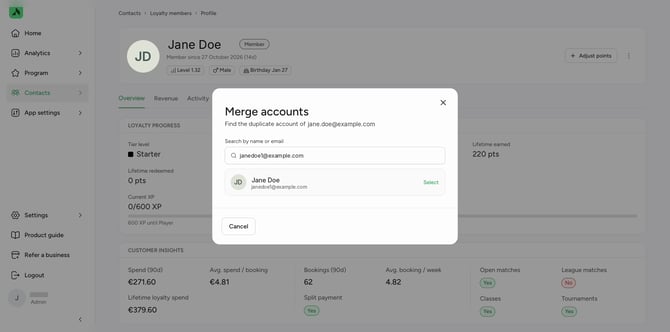
- Search for the duplicate account by name or email and click Select.
- You’ll see an overview of both accounts and what the kept account will look like after the merge: member since date, points balance, plays and completed challenges. Picked the wrong account to keep? Click Keep … instead to swap them.
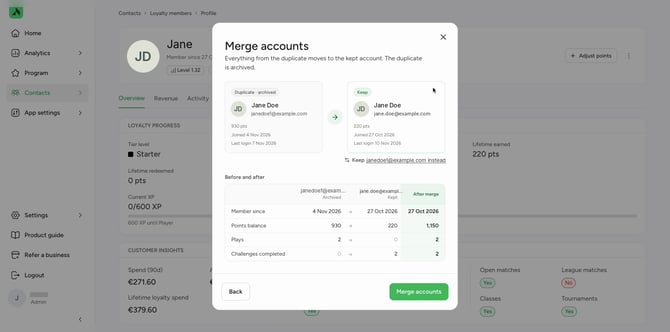
- Click Merge accounts.
- Tick the confirmation box and click Merge accounts again.
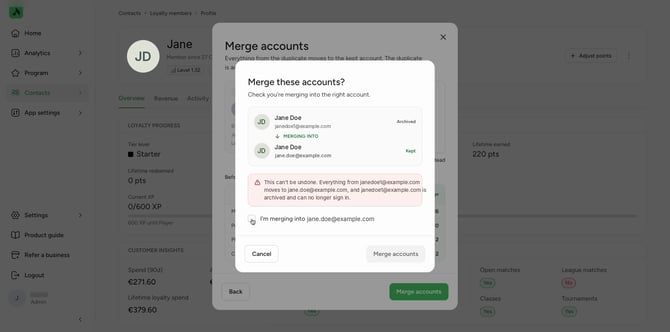
Everything from the duplicate account moves to the account you keep. The duplicate is archived and can no longer sign in. This can’t be undone, so check that you’re merging into the right account.