
On-site, manual fulfilment, birthday and gift rewards all use the same form. Vouchers have their own form (see below).
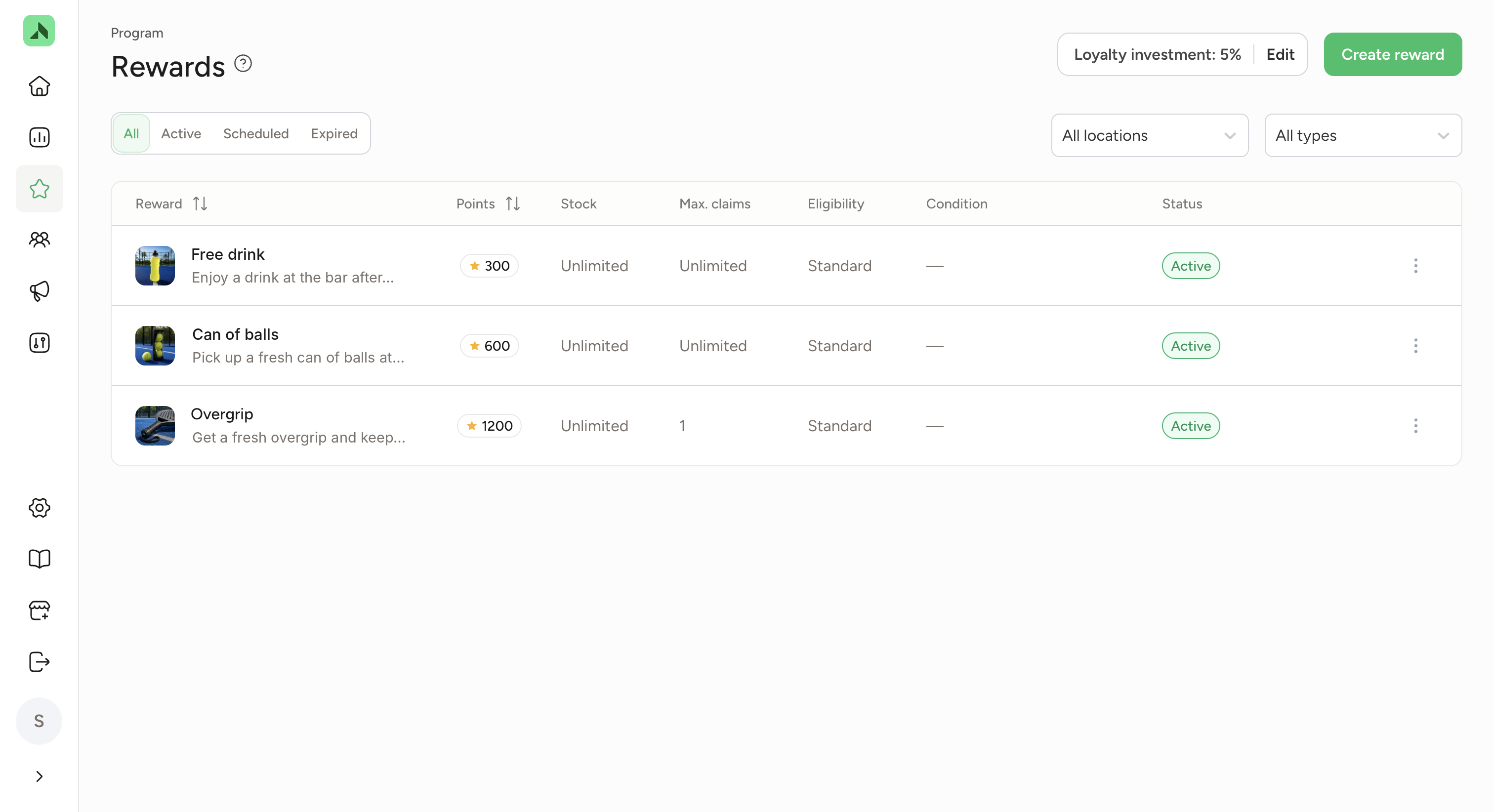
- Open the rewards overview. Go to Program > My Rewards. Here you'll see all your rewards with their points, stock, maximum number of claims and status. Filter using the All, Active, Scheduled and Expired tabs, or by location and type. Click the three dots next to a reward to Edit, Duplicate or Delete it.
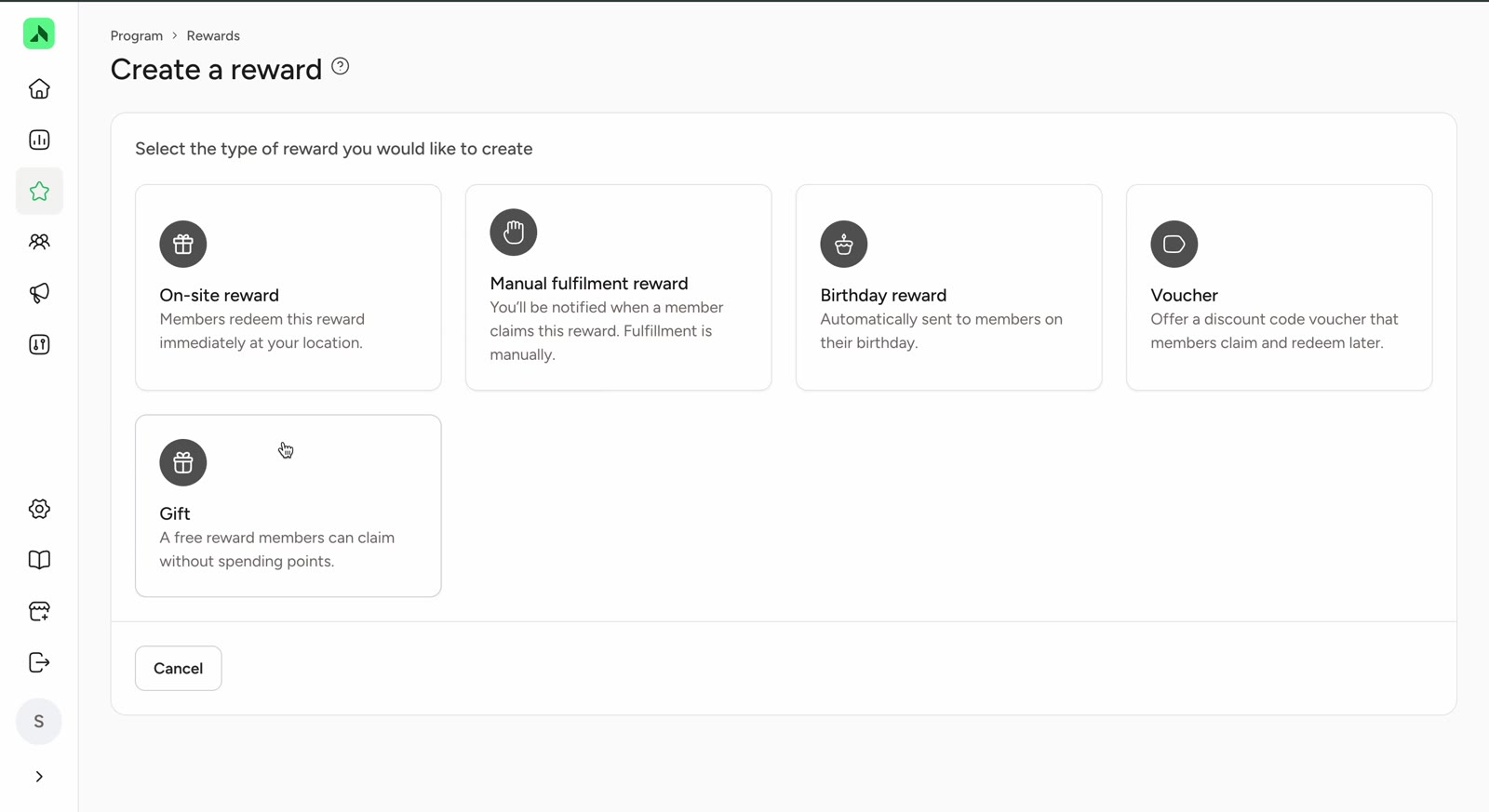
- Choose the reward type. Click Create reward in the top right and pick one of the five types.
- Fill in the basics (1. Reward). Add an image via Upload or Search, and enter a name and description. The name can be up to 32 characters; the description needs at least 10. The Reward preview on the right shows exactly how members will see the reward in the app.
- Set the value (2. Cost and value). Under Selling price, enter the normal price a customer would pay for this product or service. This amount isn't shown in the app; it's only used as a reference. The system then automatically calculates the Required points (rounded to keep the numbers simple). How many points that comes to depends on how members earn points in your programme (per minute played, per euro spent or per check-in) and on your loyalty investment percentage. See How are points calculated? for worked examples per sector.
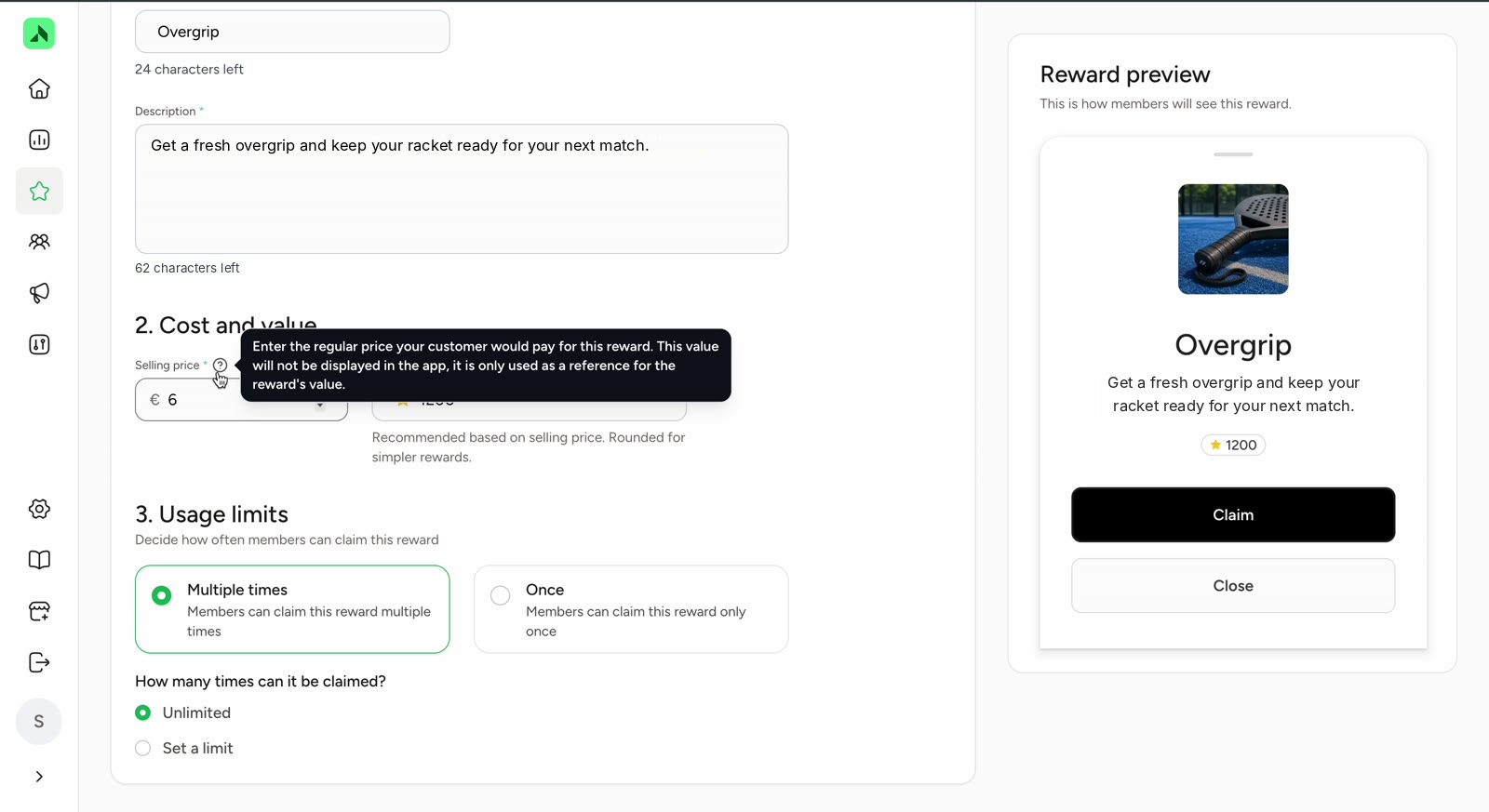
- Decide how often a reward can be claimed (3. Usage limits). Choose Multiple times or Once. With Multiple times, choose Unlimited or Set a limit to cap it per member.
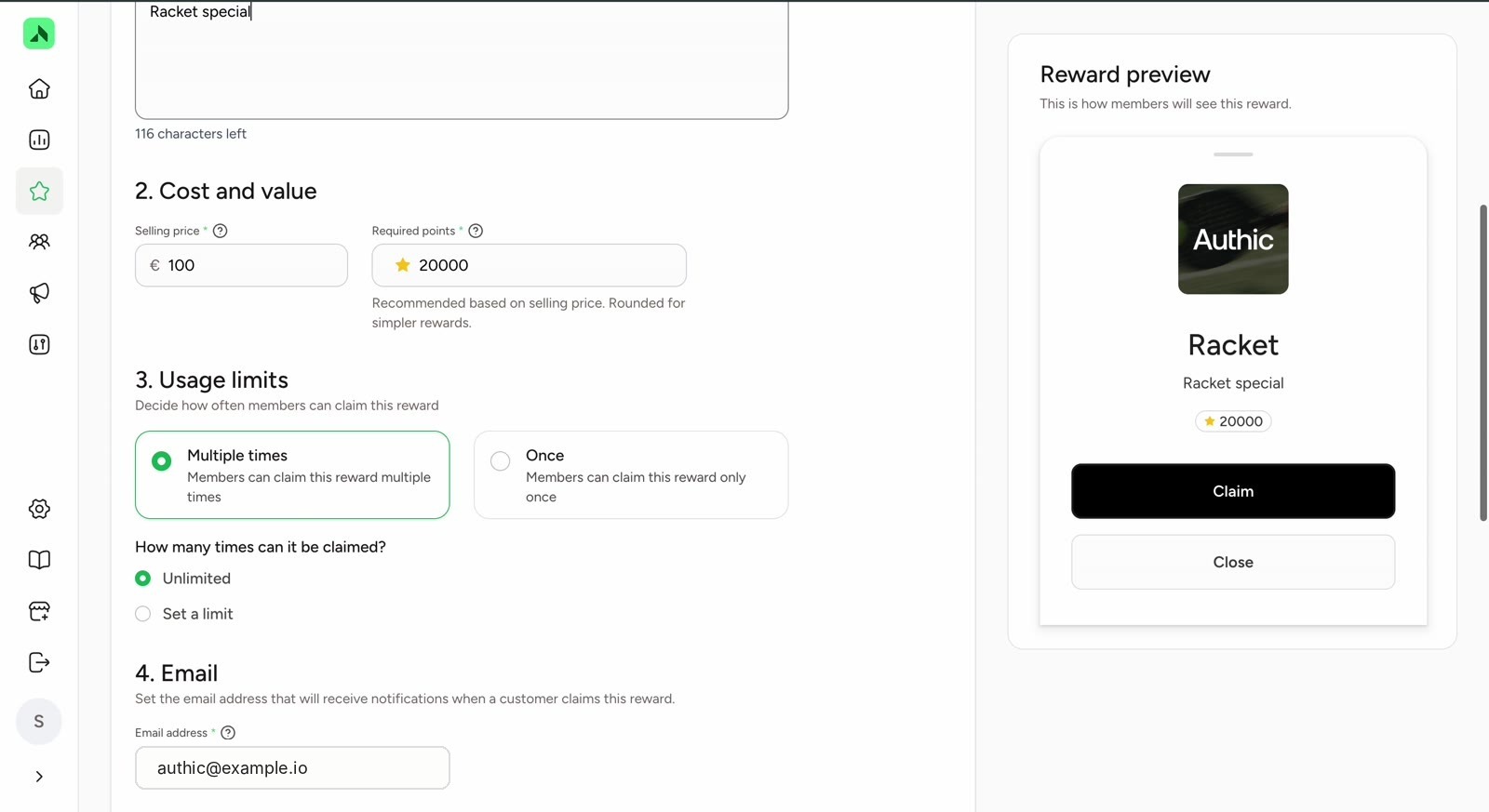
- Manual fulfilment only: enter the email address (4. Email). You'll get a notification at this address whenever a member claims the reward. This field is required.
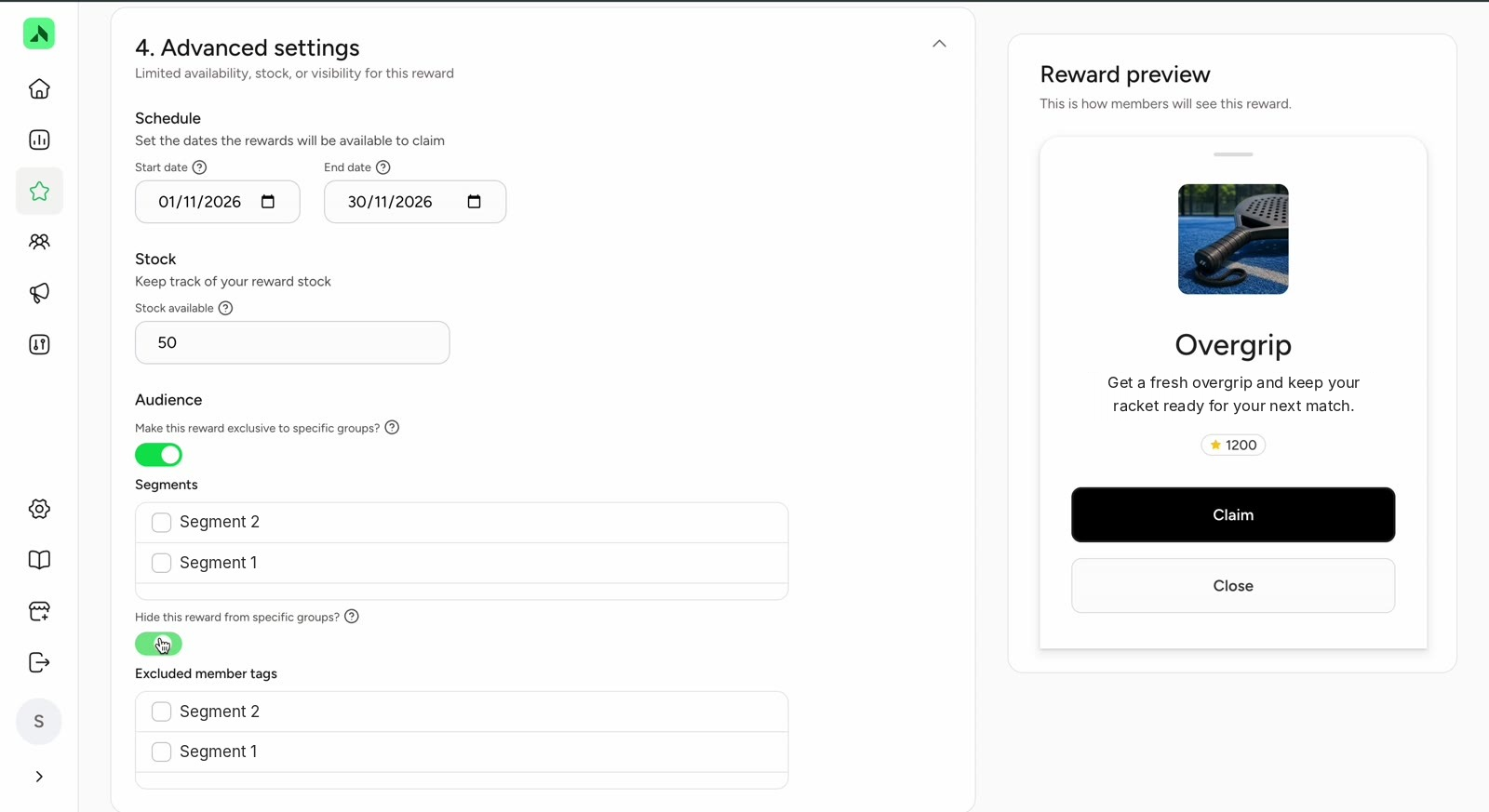
- Optional: Advanced settings. Expand this section to set:
- Schedule: the start and end date during which the reward can be claimed. Until the start date, the reward shows as Scheduled.
- Stock: how many are available. When stock is running low, the overview shows Low stock.
- Audience: make the reward exclusive to certain segments, or hide it from members with certain tags. That way you can offer a reward only to staff or students, for example.
- Save the reward. Click Create, or Create and add another to go straight on to the next one. When editing an existing reward, click Save. You'll see the message Reward created successfully once it's done.