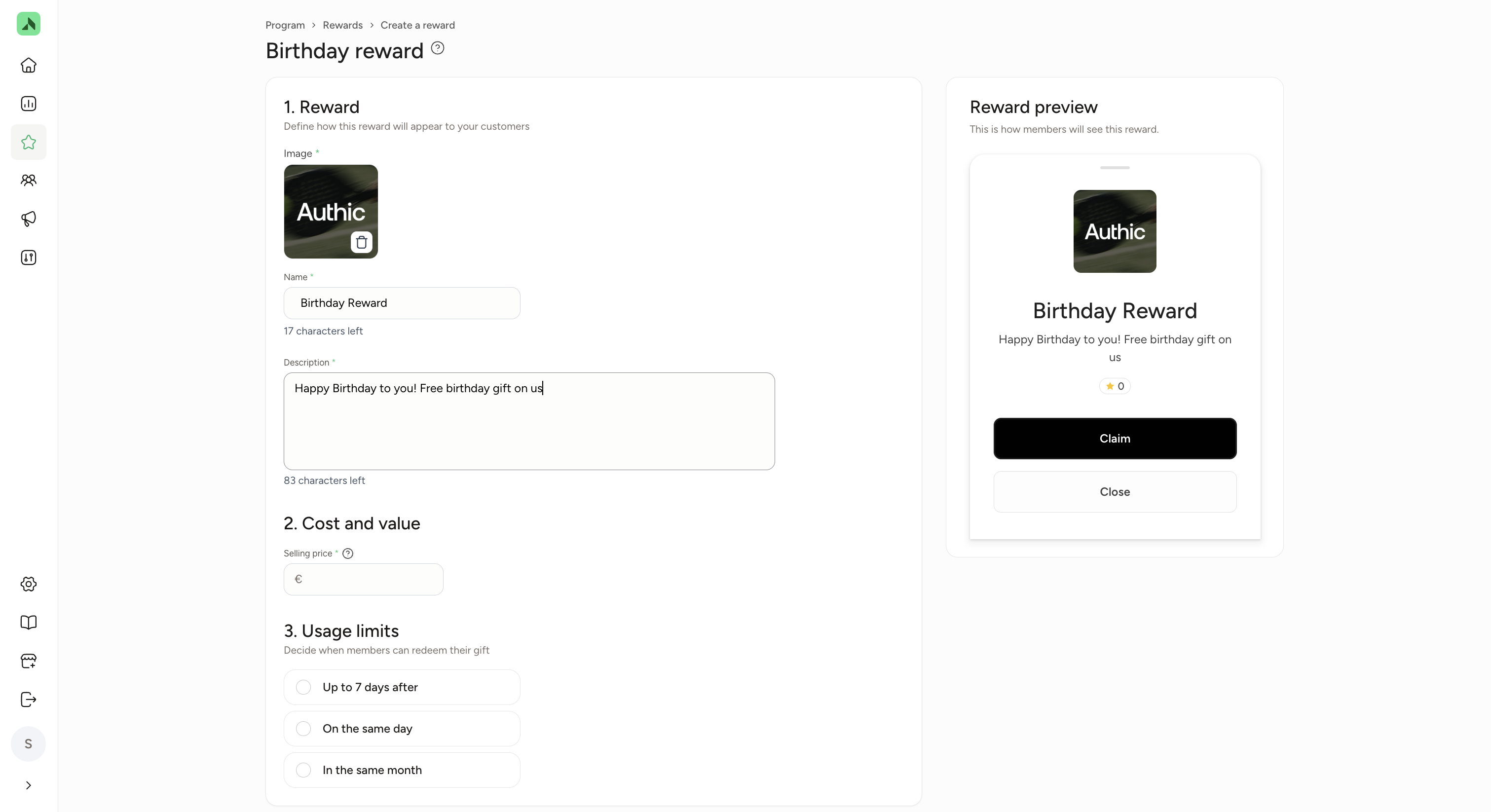
For a birthday reward you only enter a selling price. Members don't need to save points for it. The member claims the reward in the app and a staff member confirms the redemption with a QR code or a swipe, just like an on-site reward. Under 3. Usage limits, choose how long the reward is valid: Up to 7 days after (their birthday), On the same day or In the same month.
Gift
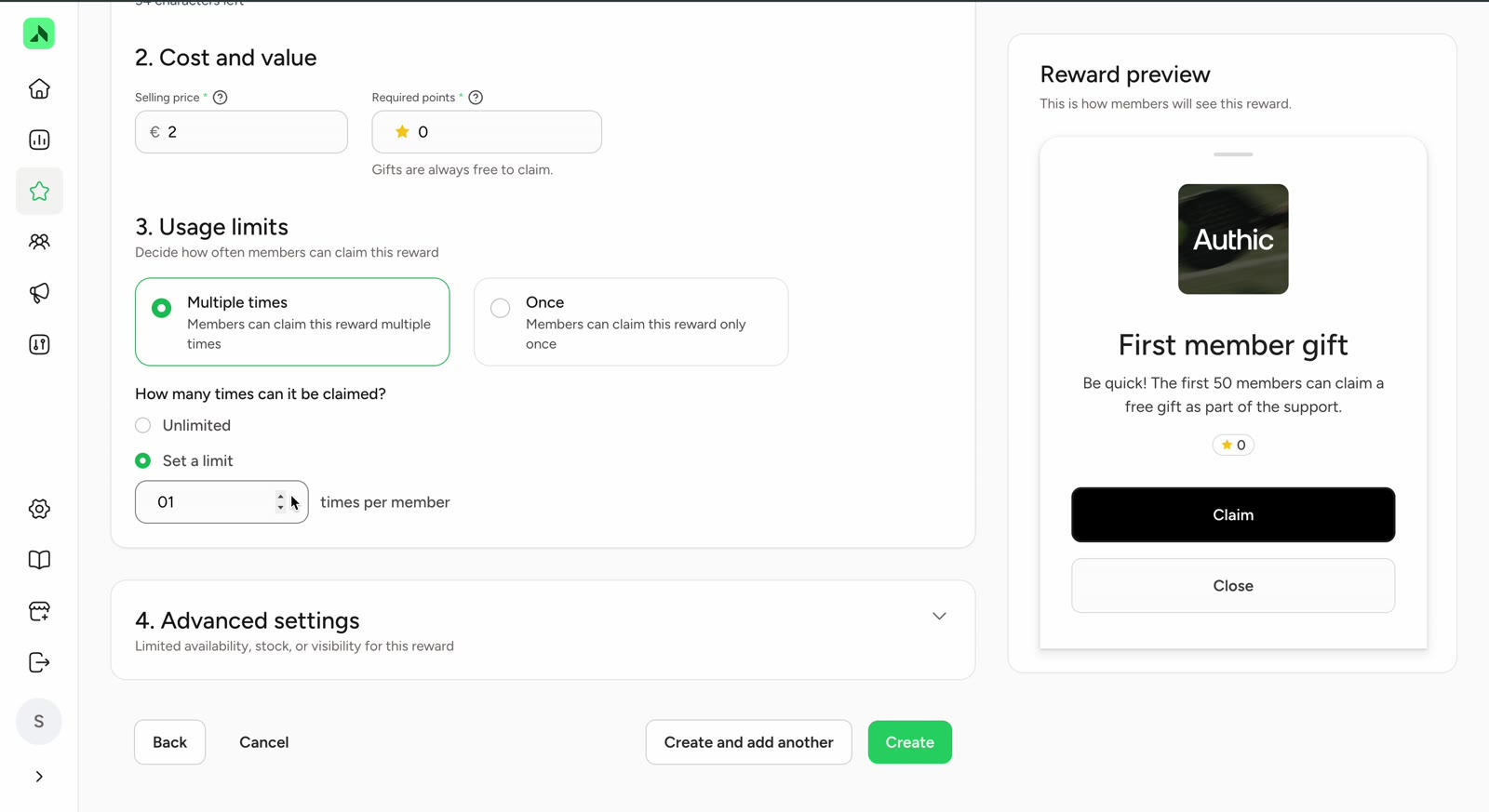
A gift is always free: the required points are fixed at 0. A gift can be something physical, like a drink, or a voucher code. For a physical gift, the member claims it in the app and a staff member confirms the redemption with a QR code or a swipe, just like an on-site reward. Limit the number of claims per member with Set a limit (for example once per member). Under Advanced settings, choose how long the gift is available: a maximum number with Stock (for example 50), only during a certain period with Schedule (for example until the end of the year), or both. Once the stock runs out or the period ends, the gift disappears. Pair a gift with your launch promotion.
Voucher
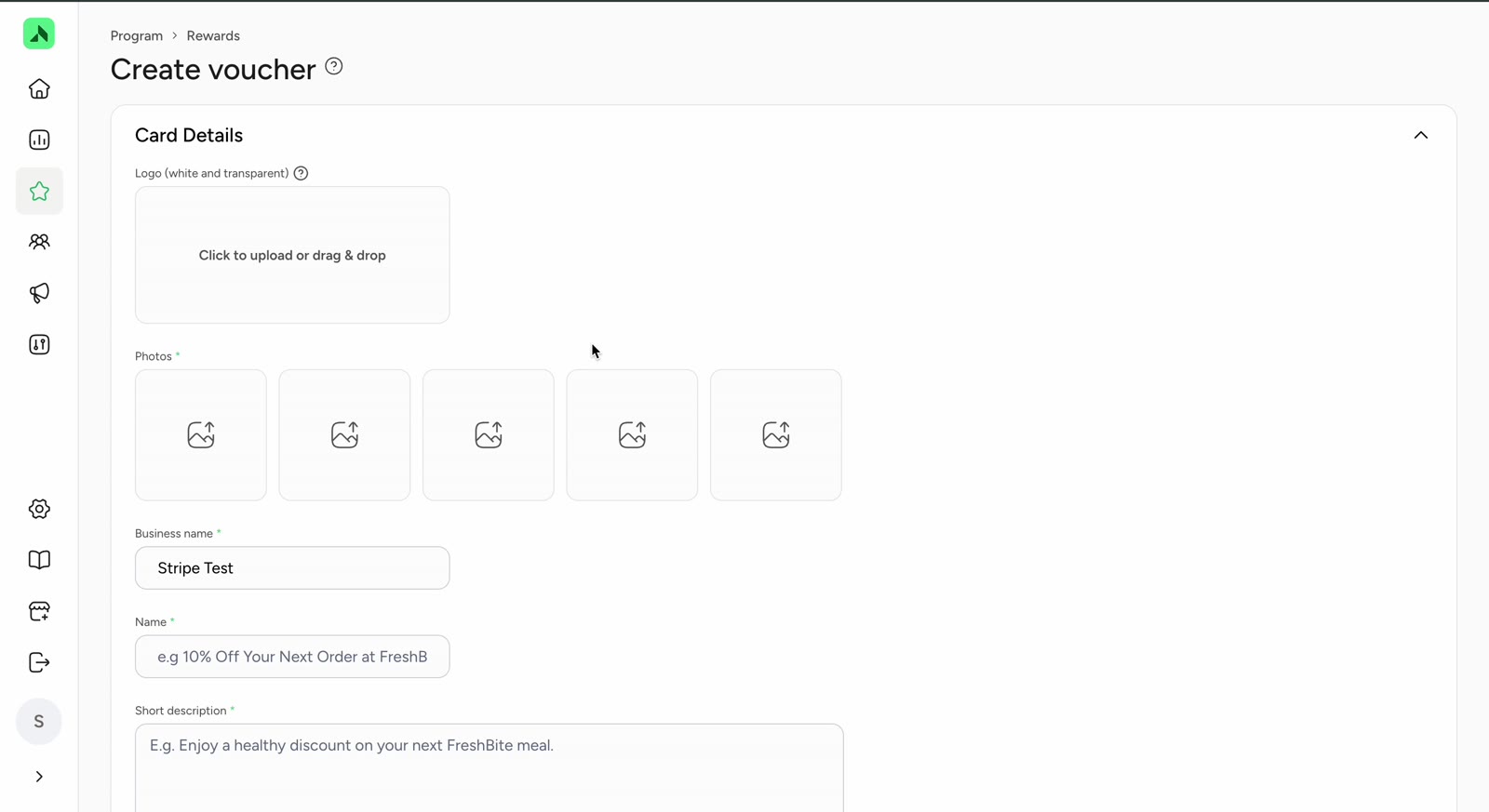
Vouchers have their own form (Create voucher) with four parts:
- Card Details: logo (white and transparent), photos, business name, name, short description and website. Enter the website as a full URL, otherwise the form will show an error.
- Reward Details: a longer description, the Terms and conditions and an explanation of how members use the code (How to redeem).
- Reward Values: the number of points, a start and end date and the maximum number of claims per member. Note: for vouchers you enter the points yourself; they aren't calculated automatically.
- Reward Codes: this is where you decide which discount code members get. There are two options:
- Unique codes (upload a file): create a batch of unique discount codes in your booking or POS system, for example 100 of them. Put them in a CSV or Excel file with a column called "code" or "codes" and upload it under Discount codes. After uploading, you'll see how many codes it contains. Each time a member claims the voucher, they automatically get the next code on the list, so every code is only used by one member.
- Multi-use code (one code for everyone): switch on Does this reward have a single, multi-use code? Enter the code (for example SPRING25) and, under Stock, how many times the voucher can be claimed. All members get the same code.
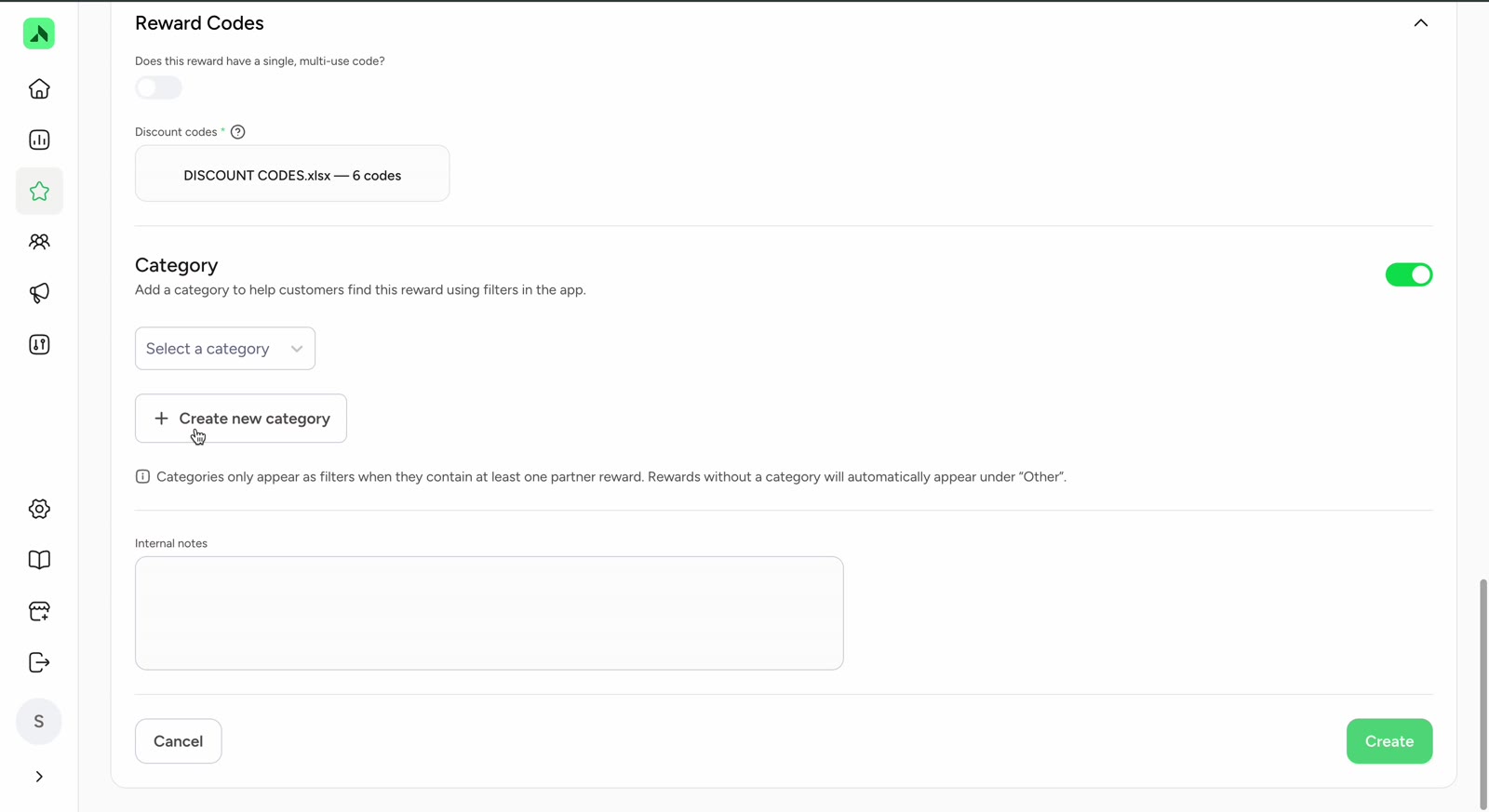
Optionally, choose a Category so members can find the voucher using filters in the app, and add Internal notes. Then click Create.